Table of Contents
- All 10 Python IDEs at a glance
- What is a Python IDE, and do beginners need one?
- What to look for in a beginner's Python IDE
- 10 Python IDEs compared, with versions checked
- Best Python IDE for Windows, Mac and Linux
- Best Python IDE for students
- Python IDE for iPad and Android
- Which Python IDE should you choose?
- Install one and run your first program
- Tips for beginners using a Python IDE
- Moving from one IDE to another
- How we teach it
- Python IDEs: common questions
- Final thoughts
The best Python IDE for most beginners is Thonny. It installs with Python already inside, keeps the screen simple, and can run your program one step at a time so you see what each line does. If Python is already on your computer, IDLE comes with it and is enough for your first weeks. Once you are writing bigger programs or using several languages, move to VS Code or PyCharm. All of these are free to use.
Below is a comparison of ten Python editors, with the current version and system facts taken from each maker's own site on 15 November 2026, the best pick for Windows, Mac, Linux, students, iPad, Android and the browser, and a hello-world program with the output it printed when we ran it. If you are learning Java as well, our guide to the best Java IDE does the same for Java.
All 10 Python IDEs at a glance
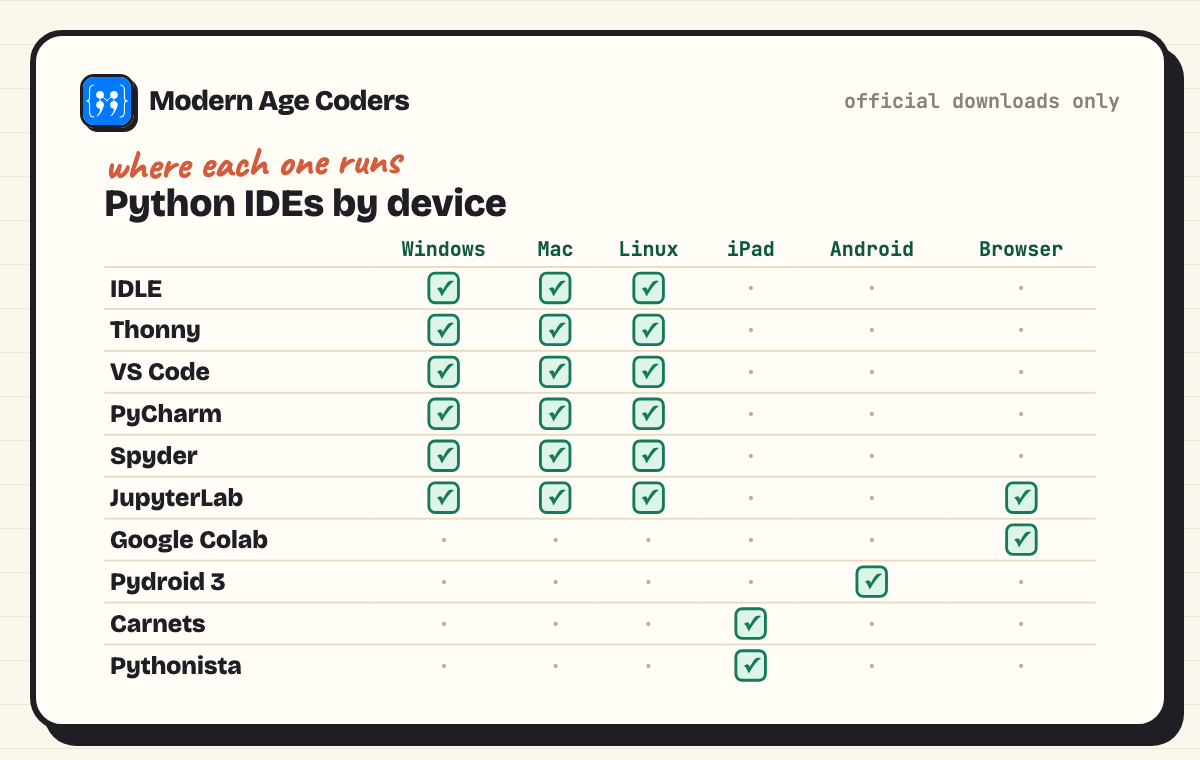
| IDE | Version on 15 Nov 2026 | Cost | Runs on | Best for |
|---|---|---|---|---|
| Thonny | 5.0.1 | Free | Windows, Mac, Linux | Absolute beginners and children |
| IDLE | Comes with Python 3.15.2 | Free | Windows, Mac, Linux | First lines with nothing extra to install |
| VS Code + Python extension | 1.146 | Free | Windows, Mac, Linux | Students using several languages |
| PyCharm | 2026.3 | Core features free; Pro is a paid subscription | Windows, Mac, Linux | Larger projects, web and data |
| Spyder | 6.1.8 | Free, open source | Windows, Mac, Linux | Science and data analysis |
| JupyterLab | 4.6.6 | Free, open source | Windows, Mac, Linux, browser | Notebooks, data, teaching |
| Google Colab | Web service | Free of charge, with usage limits | Browser | No install, Chromebooks, AI and data |
| Pydroid 3 | Play Store app | Free to install; ads and in-app purchases | Android | Python on an Android phone or tablet |
| Carnets | App Store app | Free | iPad | Jupyter notebooks on an iPad |
| Pythonista 3 | App Store app | Paid | iPad, iPhone | Scripts and apps on iOS |
Versions come from python.org's downloads page, the Thonny, VS Code, Spyder and JupyterLab release pages, and JetBrains' release data. Mobile apps are listed by store because their store pages are the official source.
What is a Python IDE, and do beginners need one?
An IDE (integrated development environment) is a program where you write code, run it and fix it in one window. For Python it usually gives you an editor with colours for keywords, a run button, a place to see output and errors, and a debugger to step through code. You can write Python in any text editor and run it from a terminal, but a beginner learns faster when the run button and the error message are on the same screen as the code.
What to look for in a beginner's Python IDE
Must-haves
- One-click run with output in the same window.
- Clear error messages that point to the line.
- Easy Python setup. Either Python is bundled, or the IDE finds it for you.
- A simple screen, so the code is the main thing you see.
Nice to have
- A step-by-step debugger that shows variables changing.
- Code completion once you know the basics.
- Notebook support if you will do data or AI work.
10 Python IDEs compared, with versions checked
1. Thonny (best for absolute beginners)
Thonny describes itself as a "Python IDE for beginners". Its site says "Thonny comes with Python 3.14 built in, so just one simple installer is needed" and that "The initial user interface is stripped of all features that may distract beginners." The feature that makes it ideal for learning is its debugger: "Just press Ctrl+F5 instead of F5 and you can run your programs step-by-step, no breakpoints needed." Select View, then Variables, to watch values change.
- Version: 5.0.1 (released 28 October 2026).
- Windows: installer for Windows 10 or 11, Intel/AMD and Arm.
- Mac: installers for Intel Macs and Apple Silicon Macs.
- Linux: an install script, Flatpak, or
sudo apt install thonnyon Debian, Raspbian, Ubuntu, Mint and others.
2. IDLE (comes with Python)
IDLE is installed with Python from python.org, where Python 3.15.2 (released 25 October 2026) is the current version. The Python documentation calls IDLE "Python's Integrated Development and Learning Environment" and lists it as "cross-platform: works mostly the same on Windows, Unix, and macOS". You write code in an editor window and choose Run Module (F5); in the documentation's words, "Output is displayed in the Shell window." IDLE has no frills, which is both its strength and its limit.
3. VS Code with the Python extension (best for students)
Visual Studio Code is a free editor from Microsoft; version 1.146 is current. Its Python tutorial explains the setup honestly: three pieces work together, VS Code, the Python extension, and a Python interpreter, and "The extension doesn't include Python itself." So install Python first. VS Code's requirements page says it "is a small download (< 200 MB)" and recommends a "1.6 GHz or faster processor" and "1 GB of RAM". It runs on Windows, macOS and Linux, and it handles HTML, JavaScript, Java and more, which is why students like it.
4. PyCharm (best for bigger projects)
PyCharm from JetBrains is now one product: its installation guide says "The Community Edition is now part of the unified PyCharm product: PyCharm's core features remain free and open-source." New installs start with "a 30-day free Pro trial"; after it ends you can "Keep using PyCharm's core features for free" or pay for Pro. Version 2026.3 was released on 5 November 2026. It is heavier than the others: JetBrains lists "8 GB of total RAM", a 4-core CPU and "Windows 10, 11" or "macOS 26, 27" in its system requirements, so check an older laptop first.
5. Spyder (best for science and data)
Spyder's documentation calls it "a powerful scientific environment written in Python, for Python, and designed by and for scientists, engineers and data analysts", and says it "is open source software, which means that is free for everyone to use". Version 6.1.8 came out on 24 October 2026, with installers for Windows 10 and later, macOS (Apple Silicon on 14.0 or later, Intel on 13.0 or later) and Linux. Its variable explorer is excellent for seeing tables of data, less useful for a first print.
6. JupyterLab (best for notebooks)
Project Jupyter calls JupyterLab "the latest web-based interactive development environment for notebooks, code, and data". A notebook mixes code, output, charts and notes in one page, which is perfect for data, maths and AI lessons. Version 4.6.6 is current. You can install it on any computer with Python, or try it with no install at all through JupyterLite, which Jupyter's own site says "runs entirely in the Web browser".
7. Google Colab (best with no install)
Colab's FAQ says it "is a hosted Jupyter Notebook service that requires no setup to use and provides free of charge access to computing resources, including GPUs and TPUs". Notebooks are "stored in Google Drive", so you need a Google Account, which Google allows people to manage themselves from 13 in most countries. It is ideal on a Chromebook or a school computer where you cannot install software.
8. Pydroid 3 (Android)
On Google Play, Pydroid 3 calls itself an "educational Python 3 IDE for Android" with an "Offline Python 3 interpreter: no Internet is required to run Python programs." The store page says it contains ads and in-app purchases.
9. Carnets (iPad)
Carnets is a free iPad app that the App Store describes as "A standalone Jupyter notebook"; "Everything runs on your device, using the embedded Python interpreter; you do not need an internet connection." Note that the App Store rates it 16+, so it is not one to hand to a young child.
10. Pythonista 3 (iPad and iPhone)
Pythonista is a paid App Store app that describes itself as "a complete scripting environment for Python 3.10, running right on your iPad or iPhone". It is polished, but note the Python version: 3.10 is several releases behind python.org's 3.15, so a few newer features will not work.
Best Python IDE for Windows, Mac and Linux
Python IDE for Windows
Install Python first. Python's Windows guide says "To obtain Python from the CPython team, use the Python install manager", which you can download "from python.org/downloads or through the Microsoft Store app"; after that, "the global python command can be used from any terminal". IDLE is then ready. For a beginner, Thonny's Windows installer is simpler still, because it brings its own Python. Students should add VS Code.
Python IDE for Mac
Python's macOS guide says a default install from python.org adds "A Python 3.15 folder in your Applications folder" containing "IDLE, the development environment that is a standard part of official Python distributions". Thonny has separate installers for Intel and Apple Silicon Macs. VS Code supports "macOS versions with Apple security update support".
Python IDE for Linux
Most Linux systems already have Python. Thonny installs with sudo apt install thonny on Debian-based systems; VS Code lists Ubuntu Desktop 20.04 and Debian 10 among its supported versions; PyCharm and Spyder both ship Linux builds.
Best Python IDE for students
- School students (about 9 to 15): Thonny. The step-by-step debugger makes loops and variables visible, which is exactly what teachers ask students to trace by hand.
- Board exam and A level students: IDLE or Thonny for practice, because both are free, light and quick to set up on any computer. Every program in our Python programs for CBSE Class 12 runs in either.
- University and older students: VS Code, because the same editor works for Python, Java, web and more. Move to PyCharm for large Python projects.
- Data, science or AI courses: JupyterLab or Colab for notebooks, Spyder for analysis.
Python IDE for iPad and Android
A tablet can run real Python. On an iPad, Carnets is free and works offline, and Pythonista is a paid alternative. On Android, Pydroid 3 runs Python offline. For anything longer than a short exercise, though, a laptop with a keyboard and Thonny or VS Code is much easier, and on a Chromebook or a borrowed computer, Colab or JupyterLite in the browser avoids installing anything.
Which Python IDE should you choose?
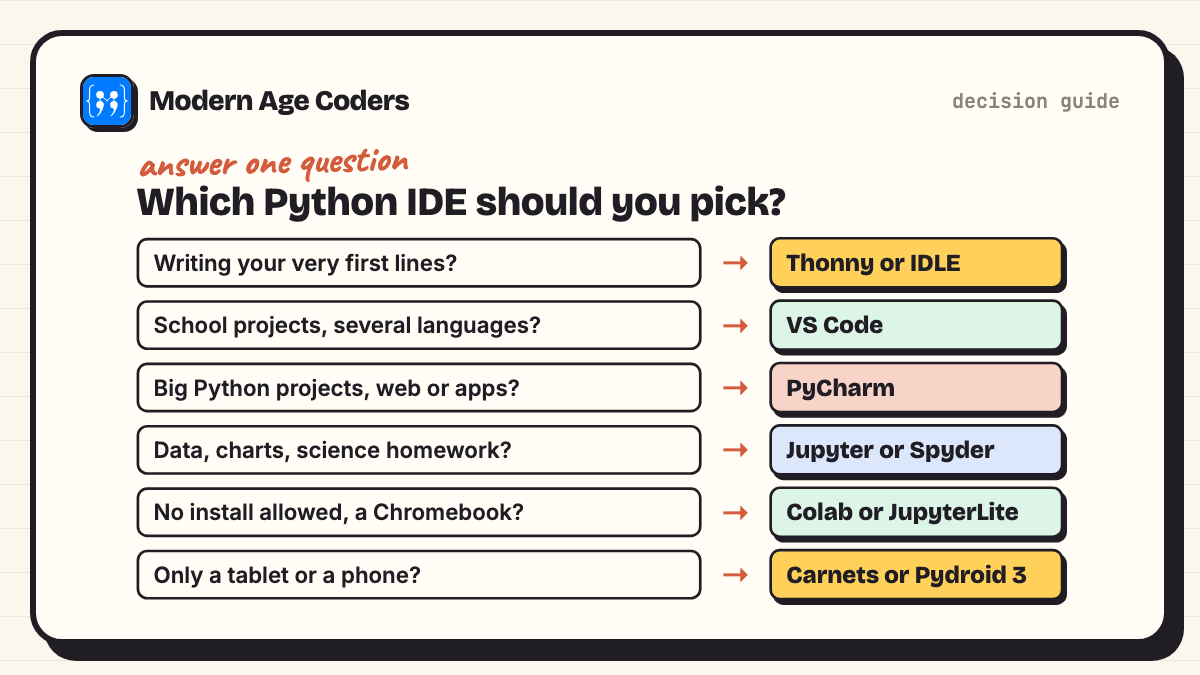
If two options fit, pick the simpler one. You can always move up later, and the Python you write is the same in every editor.
Install one and run your first program
- Install Python 3.15 from python.org (or skip this step if you choose Thonny, which brings its own).
- Open your IDE and create a new file called
hello.py. - Type the program below exactly.
- Run it: F5 in IDLE (Run Module) or Thonny; in VS Code, the Run Python File play button at the top right; or type
python3 hello.pyin a terminal (python hello.pyon Windows).
print("Hello, world!")
name = "Python"
print("My first", name, "program works!")
print("2 + 3 =", 2 + 3)
We ran it with Python and this is exactly what it printed:
Hello, world!
My first Python program works!
2 + 3 = 5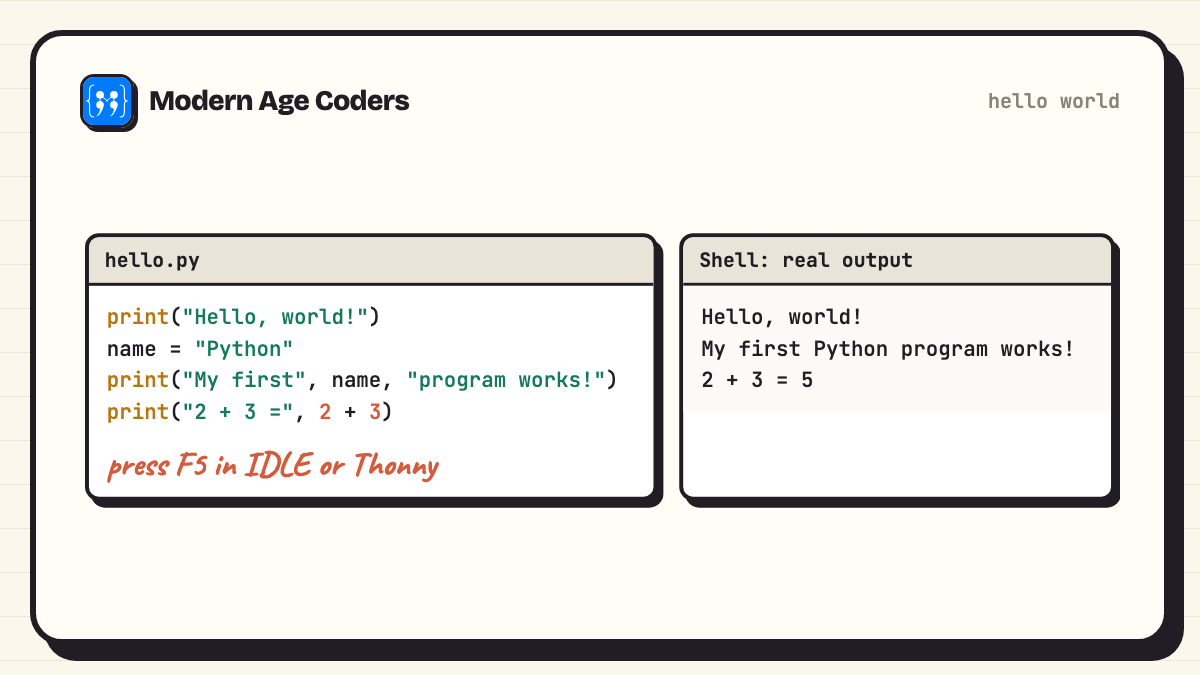
If you see an error instead, read the last line first: it names the problem. A SyntaxError usually means a missing quote or bracket; a NameError usually means a misspelt word such as Print instead of print. Our Python for beginners guide takes you on from here.
Tips for beginners using a Python IDE
- Save before you run. IDLE and Thonny ask; get used to it.
- Predict, then run. Say what the output will be before pressing F5. It is the fastest way to learn.
- Use the debugger early. Thonny's Ctrl+F5 on a five-line loop teaches more than any diagram.
- Keep extensions few. In VS Code, the Python extension is enough at the start.
- Watch your Python version. Thonny bundles 3.14, python.org is on 3.15 and Pythonista uses 3.10. Beginners' programs work on all three.
Moving from one IDE to another
Your code does not belong to the editor. A .py file written in Thonny runs unchanged in IDLE, VS Code or PyCharm. The usual path is Thonny or IDLE for the first months, then VS Code or PyCharm once programs grow past a page. Notebooks are different files (.ipynb), but JupyterLab, Colab, VS Code and PyCharm all open them.
Learn Python live, in whichever editor your school uses
An editor is only a tool; what matters is how you think through a problem. In our classes students use Thonny, IDLE or VS Code depending on their age and school, and we teach the same habits in all of them.
How we teach it
The principles on our how we teach page fit any editor: students explain their thinking, we trace a loop line by line (Thonny's step-by-step mode is perfect for this) until the student can predict every value, students work out a rule before they see it written down, we solve the same problem three ways, and error messages are treated as data, not failures. You can see this in our Python and AI for Kids course (ages 9 to 12), Python for Teens (13 to 18) and our Python course for college students and adults, one to one or in groups of 15 to 20. The first class is free.
Python IDEs: common questions
Thonny. It comes with Python built in, has a simple screen and can run a program step by step so you see each line work. IDLE, which comes with Python, is the next simplest.
All ten here can be used free except Pythonista. For most people the best free choice is Thonny to learn, then VS Code or PyCharm, whose core features are free, for larger work.
Yes, for the first weeks. It is installed with Python, runs a file with F5 and shows output in its Shell window. Most people move on once their programs need several files.
VS Code is lighter and works for many languages, which suits students. PyCharm is built only for Python and does more for big projects, but JetBrains lists 8 GB of RAM in its requirements, so it needs a stronger computer.
Thonny for a beginner, because its Windows installer brings Python with it. Otherwise install Python with the Python install manager from python.org or the Microsoft Store, then use IDLE or VS Code.
Thonny, which has installers for Intel and Apple Silicon Macs, or IDLE, which the python.org installer puts in a Python 3.15 folder in Applications. VS Code is the next step.
Yes. Carnets is a free Jupyter app for iPad and Pythonista is a paid iPad and iPhone app; Pydroid 3 runs Python offline on Android. A laptop is still easier for longer programs.
Yes. Google Colab runs notebooks in the browser and its FAQ says it is free of charge to use, with usage limits and a Google Account needed. JupyterLite, linked from jupyter.org, also runs entirely in the browser.
Thonny, with an adult nearby at first. It is simple, works offline, and its step-by-step mode helps children see what their code does. Avoid tools whose terms or age ratings are above the child's age.
Final thoughts
Pick Thonny or IDLE today, run the hello-world program, and change one line to see what happens. The editor matters far less than writing a little code every few days. If you would like a teacher to guide the next steps, the first class is free.