AIK / APP / 01
App making for kids
App Inventor, start to finish.
Open the syllabusUnited States · Ages 8 to 14 · MIT App Inventor
App Inventor projects tend to start with a specific idea: a quiz for a younger brother, a soccer score keeper, a button that makes the family dog bark. MIT App Inventor lets them build it with blocks that snap together, then run it on a real iPhone or Android phone the same afternoon. This guide covers what parents ask before starting: how a child under 13 signs in, which devices can test an app, why the phone sometimes refuses to connect, and what a first proper app looks like, with a dice game written in App Inventor blocks that you can build yourself.
Live teaching since 2020 · 10,000+ students · Apps on iPhone and Android
In short
MIT App Inventor is a free, web-based tool from MIT for building phone apps with blocks. Kids design screens in the Designer, add behavior in the Blocks Editor, and test live on an iPhone, Android phone or Chromebook through the free Companion app. It works with a Google account, or without one through code.appinventor.mit.edu and a revisit code. Modern Age Coders teaches this live online for US students, in a batch or one to one, and the first class is free.
Learn it with a teacher
Every class is live, and every project is an app the child chose to build.
AIK / 01
Ages 8 to 12. App Inventor blocks, real phones, finished apps.
Open the syllabus →
AIK / 02
Ages 6 to 12. A wider blocks course, for younger siblings too.
Open the syllabus →
AIK / 03
Ages 13 to 18. From blocks to typed code and app stores.
Open the syllabus →What it is
App Inventor comes from a small team at the MIT Computer Science and Artificial Intelligence Laboratory (CSAIL). Its own FAQ describes it as a free, web-based platform for creating, testing, and sharing mobile apps.
| Point | What App Inventor says |
|---|---|
| People who code apps with it | "Over 24 million people code their own apps with App Inventor" |
| Schools in one month of 2025 | Over 11,000 schools globally, in over 200 countries and regions |
| US schools in that month | "over 900 US schools in 50 states" |
| Who the users are | 84.9% students, 7.3% teachers, 7.8% outside education |
| Ages | "ages 4 to 84 (and more)" use it every month |
| Cost | Free; supported by grants, collaborations and donations |
Every App Inventor project has two halves. The Designer is where a child drags components onto a phone-shaped screen: buttons, labels, images, and invisible ones such as a sound player or a motion sensor. The Blocks Editor is where they decide what happens when someone taps, shakes or types.
MIT’s own first tutorial calls components the ingredients in a recipe. We find that comparison works well with eight-year-olds: the Designer is the shopping list, the blocks are the method.
The FAQ asks this question itself and answers it with who uses the tool: engineers and research scientists who normally work in Java, Python and Swift use App Inventor to build working apps quickly.
Our view, from teaching it: the blocks hide spelling and punctuation, not thinking. Events, variables, conditions, loops and lists are all there, and a child who builds three App Inventor apps arrives at typed code already knowing what an event handler is for.
Sources: the MIT App Inventor FAQ and the HelloPurr tutorial, read 17 October 2026. The FAQ’s figures are App Inventor’s own; we have not added them up or checked them. We are not connected with MIT.
Accounts
This is where many American families get stuck, because the usual sign-in is a Google account and children have their own rules on Google. There are three routes.
| Route | Who it suits | What to know |
|---|---|---|
| A personal Google account | Teens of 13 and over | Google says 13 is the minimum age to manage your own account in every country not on its exception list; the United States is not on that list (our reading) |
| A Google account managed with Family Link | Children under 13 | Google says parents can help create and manage a younger child’s account with Family Link |
| A school Google account | Students whose district uses Google | Google notes its consumer age rules may not apply to Workspace for Education accounts; the school sets the rules |
| No account, at code.appinventor.mit.edu | Anyone, including classes | Choose "Continue Without An Account" and keep the random revisit code; without it the project cannot be found again |
The no-account route gives each user a randomly generated code. App Inventor says that if the user wants to return to the project later, they must copy that code and keep it somewhere safe, because otherwise projects cannot be retrieved after logging out.
Our tip for families: write the code on paper and put it in a phone note as well. Without that code, the project cannot be found again.
The FAQ says App Inventor does not keep personally identifiable information and keeps Google account details only so that project files can be saved. Its terms add that projects stay private unless you share them, and that young people especially should be careful about putting personal information on the site.
For schools, the terms describe the code.appinventor.mit.edu version as one that does not collect or keep personally identifiable information, which is why many US teachers use it.
Signed in and the projects have vanished? The FAQ says this is almost always because you are logged in to a different Google account from the one that created them. Check the address shown at the top right before anything else.
Testing on a device
Building happens in the browser on a Mac, Windows computer or Chromebook. Testing happens on a device, live, while the child is still changing blocks. MIT’s setup page lists four options.
| Option | What you need | MIT’s note |
|---|---|---|
| 1. Phone or tablet over Wi-Fi | An iPhone, Android phone, iPad or Android tablet, plus the free Companion app | Recommended; the easiest way |
| 2. Chromebook | A Chromebook that can run Android apps | Build, test and run on the same device |
| 3. Emulator on the computer | Emulator software installed on a Mac or PC | Under Revision: Not Recommended |
| 4. USB cable | An Android device and a cable | Android only; for networks that block the Wi-Fi link |
App Inventor has worked with iPhones and iPads since March 2021, and MIT says almost all apps in its tutorial list work in the iOS Companion. A few features are still missing on iOS, among them Bluetooth, the Charts and Spreadsheets components and Android extensions.
Turning an app into a permanent iPhone app file is harder, because Apple requires a paid developer account and signing; MIT says that packaging process is currently in a closed beta.
The simplest way to keep a finished app works on both iPhone and Android: while it runs in the Companion, tap the book icon at the top right. It is then saved in the Companion’s library and opens offline, with nothing to install.
On Android you can also build an installable .apk file that runs on its own. Building still needs the internet, because App Inventor itself runs in the browser.
A first real app
HelloPurr, MIT’s classic first app, plays a meow when you tap a kitten. Our next step for students is a dice that rolls when the phone is shaken, speaks the result and remembers how many rolls there have been. The blocks are ours, written with components from the App Inventor reference; build them and shake your own phone.
// Shake-to-roll dice (ours)
// Components: LabelRoll, AccelerometerSensor1, TextToSpeech1
initialize global roll to 0

when AccelerometerSensor1.Shaking
  set global roll to random integer from 1 to 6
  set LabelRoll.Text to get global roll
  call TextToSpeech1.Speak
       message: join "You rolled a " get global roll
The random integer block returns a whole number between the two values, inclusive, so 1 and 6 can both appear. TextToSpeech speaks the joined text aloud.
// Remember how many times the dice was rolled (ours)
// Extra component: TinyDB1
initialize global rolls to 0

when Screen1.Initialize
  set global rolls to call TinyDB1.GetValue
       tag: "rolls"   valueIfTagNotThere: 0

when AccelerometerSensor1.Shaking
  set global rolls to get global rolls + 1
  call TinyDB1.StoreValue
       tag: "rolls"   valueToStore: get global rolls
  set LabelCount.Text to join "Rolls so far: " get global rolls
Apps forget their variables every time they close. TinyDB is App Inventor’s persistent store, so the count survives. Screen1.Initialize runs once when the screen starts, which is the moment to load the saved number.
Nothing in App 1 runs until the phone is shaken. Shaking is the event; the blocks inside it are the handler; the global roll is the state that the handler changes. That pattern runs nearly every app on a phone.
App 2 adds the harder idea: state that outlives the app. Children who understand why the count resets in App 1 and survives in App 2 have understood what a database is for.
One hard shake can count as several. The AccelerometerSensor has a MinimumInterval property, in milliseconds, that ignores further Shaking events until the time has passed; raising it is the fix.
While testing, every app run in the same Companion shares one TinyDB, so a count from yesterday’s project can appear in today’s. The reference says this sharing disappears once apps are packaged, and suggests clearing the Companion’s data when starting a new app.
A quick check with arithmetic, ours: a fair dice shows a 6 one time in six on average, so in 60 shakes you would expect about 60 / 6 = 10 sixes. Ask your child to shake sixty times, count, and explain why the answer is rarely exactly 10. That is probability, taught by their own app.
At school
With over 900 US schools in all 50 states using it in a single month, according to App Inventor’s 2025 survey, many children meet it in class first. Two school questions come up most.
The App Inventor FAQ answers the phone-ban case directly. Students can test on a Chromebook in a second window, on an iPad, on an Android tablet shared by a team of two to four, on the free emulator (which cannot reach some sensors and Bluetooth), or on a Mac with Apple Silicon that runs the Companion on the desktop.
Coding on a touchscreen alone is possible on an iPad or Android tablet, but MIT warns it can be tricky and suggests trying it before a class depends on it.
For high schools, the FAQ points teachers who want App Inventor as an official course to the "AP board certified Mobile CSP", an AP Computer Science Principles course built on it.
If your teen is heading toward AP CSP, our page on AP Computer Science Principles coaching covers the exam itself, and App Inventor apps make good practice for the course’s programming work.
| Symptom | What MIT suggests |
|---|---|
| The QR code connects at home but not at school | Some school firewalls block the kind of Wi-Fi connection App Inventor needs; try USB on Android |
| Nothing loads at all on the network | The FAQ points IT staff to its letter for IT professionals in schools about blocked ports |
| The browser is the problem | App Inventor supports Chrome, Firefox and Safari on most laptops and desktops |
A first term
Our plan for children of about 9 to 12 who are new to App Inventor. Younger children take longer on each app; that is fine.
| Weeks | The app | The coding idea |
|---|---|---|
| 1 to 3 | A talking button app of the child’s choosing | Components, properties and one event |
| 4 to 7 | The shake-to-roll dice above, then a coin flip | Variables, random numbers, joining text |
| 8 to 12 | A quiz with a score that is saved | Conditions, lists and TinyDB storage |
Design-heavy apps with one or two events, plenty of sound and color, and a parent nearby for the Wi-Fi setup.
The full three apps, with their own idea by week 8, often something for a sibling, a team or a class.
Faster through blocks, then the move to typed code in our teen app course, where the same events reappear.
A teen with an app worth showing can also aim at a US audience: our Congressional App Challenge guide explains that competition from its official rules.
From idea to app
The stages our App Inventor lessons move a child through.
| Stage | What it looks like |
|---|---|
| 1. Arranger | Places buttons and pictures in the Designer; no blocks yet |
| 2. Responder | Writes one event per button, like HelloPurr |
| 3. Rememberer | Uses variables and TinyDB so the app keeps track of things |
| 4. Designer | Plans screens on paper first, tests with real users, fixes what confuses them |
The Wi-Fi connection step is where younger children need an adult. After that, testing is something a child can learn to do alone.
Ask to use the app. A child who watches someone else get confused by their screen learns more about design than any lesson.
Make the app small and finished before you make it big. A dice that works beats a game that almost works.
Name your components. LabelRoll is easier to find in the blocks than Label7.
The catalog
Taught live online by the same teacher each week, in a batch or one to one.
AIK / APP / 01
App Inventor, start to finish.
Open the syllabusAIK / APP / 02
Scratch, apps, then AI.
Open the syllabusAIK / APP / 03
Games and stories in blocks.
Open the syllabusAIK / TYP / 01
A first typed language.
Open the syllabusAIK / TYP / 02
Websites with HTML, CSS, JavaScript.
Open the syllabusAIK / TYP / 03
From blocks to game engines.
Open the syllabusAIK / TEN / 01
Real app code and publishing.
Open the syllabusAIK / TEN / 02
Interactive sites and games.
Open the syllabusAIK / TEN / 03
The College Board course and exam.
Open the syllabusHow lessons work
Weekdays or weekends, flexible: choose your batch, or for a very personalised plan choose 1-on-1 at your convenience, weekend mornings or weekdays.
Weekdays
After-school batches across the US time zones.
Weekends
Weekend mornings for families who prefer them.
1-on-1
A private plan, at the hours you choose.
Kids test every change on their own device.
The app is one they want to use.
Week after week, term after term.
The step to typed code when ready.
Any state, any time zone.
Fifteen to twenty, or just your child.
Student work
A few things learners built after their first App Inventor term. See the student labs for more.
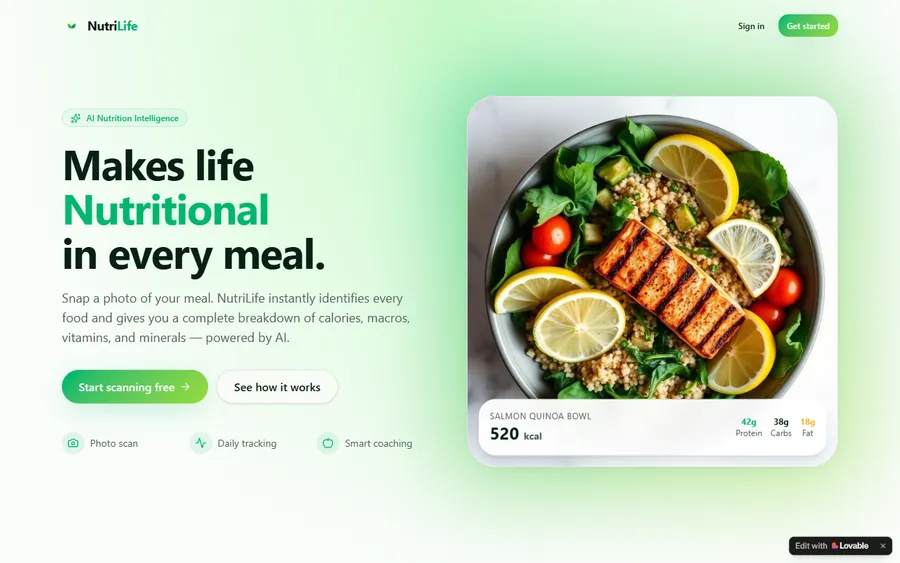
AI and ML
An AI nutrition coach that reads what you eat and works you toward a target.
AI and ML
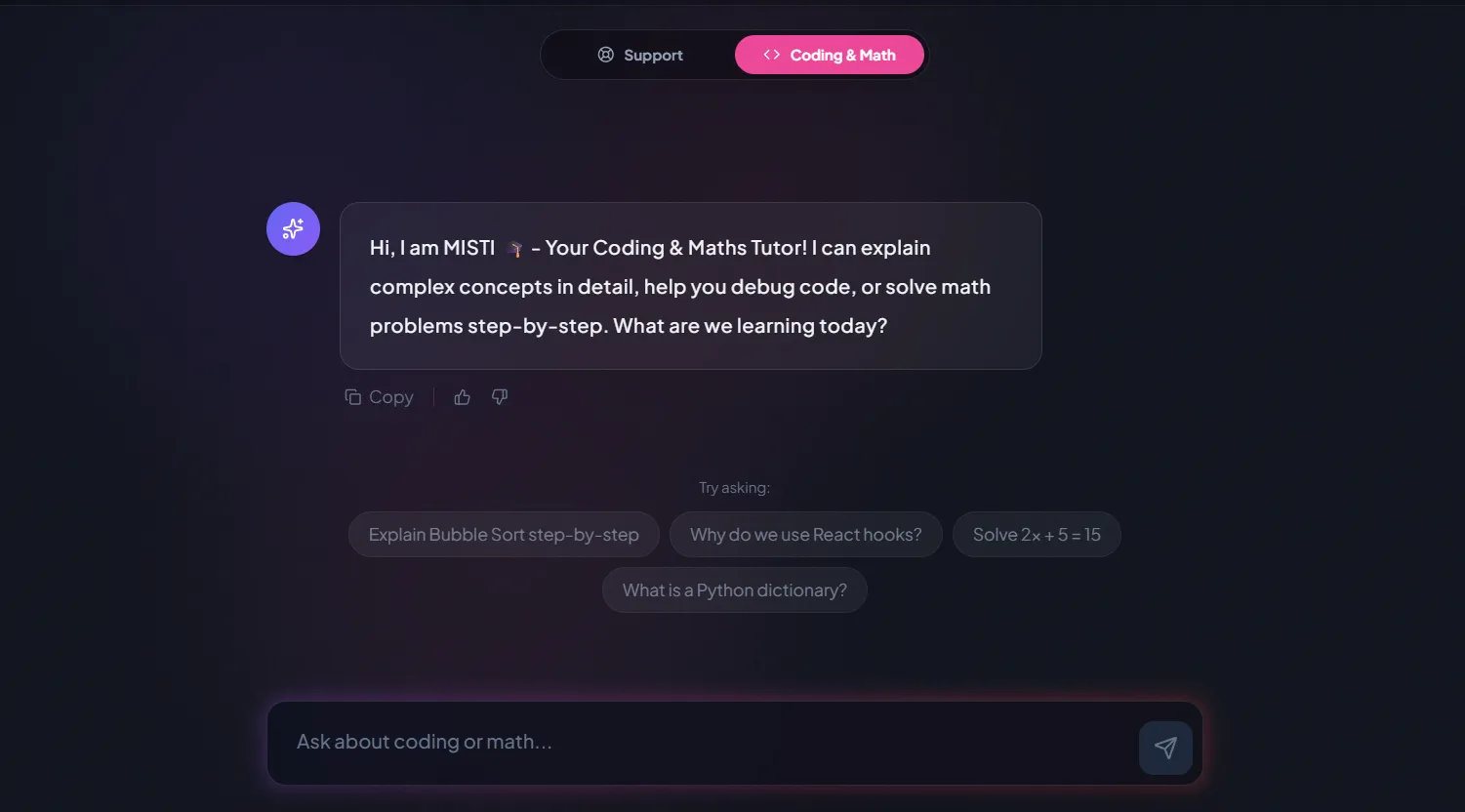
A chatbot that answers mathematics and programming questions, built and deployed by a student.
AI and ML
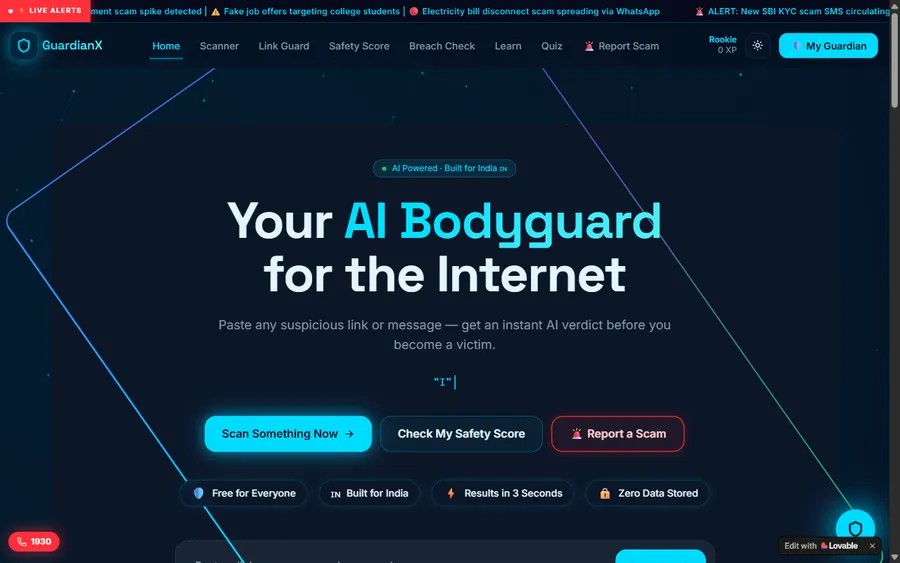
An assistant that helps a young person recognise unsafe situations online.
Web app
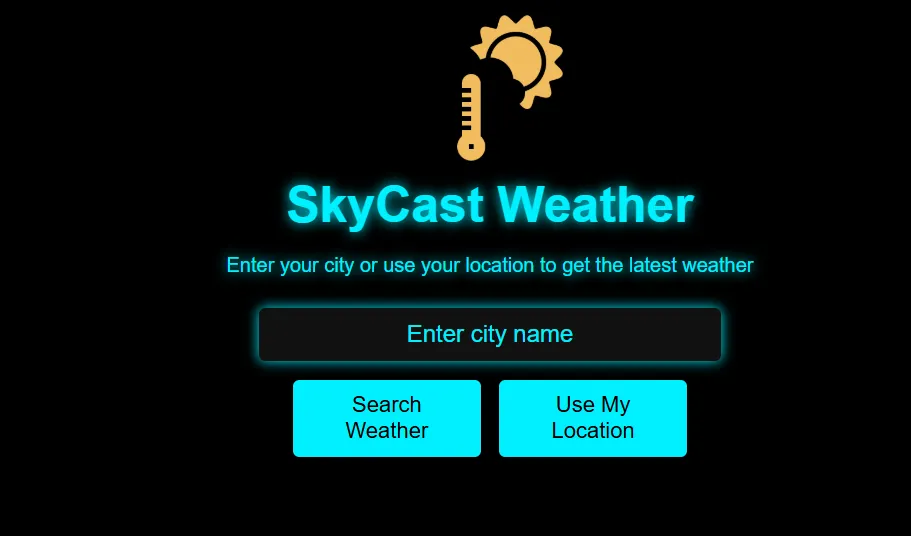
A weather forecasting site with live conditions for any location.
Fees
App Inventor and the Companion are free. Our lessons are billed one month at a time in US dollars; there is no term contract, and you can stop at the end of any month.
Group batch
USD 100
a month, billed in US dollars
One to one
USD 150
a month, billed in US dollars
What families say
From Google, as parents wrote it.
★★★★★
"The one step solution for my son. Modern Age Coders make learning coding so simple that kids love it. The teachers explain complex concepts clearly with practical exercises and interactive content."
Ria Mukherjee
Parent
★★★★★
"Modern Age Coders has been a game-changer for me. I struggled to grasp IT concepts and coding before joining, but their classes transformed everything. I can now confidently write complex programs with ease."
Samriddha Mondal
Student
★★★★★
"One of the most wonderful education centres out there. Education is not limited to school syllabus but focuses on skill development."
Vansh Agarwal
Student
★★★★★
"My child Dhairya is really enjoying the Modern Age Coders classes. This is his first online class and he eagerly looks forward to it. I can already see his improvement, and the teachers are very cooperative."
Sonam Oswal
Parent of Dhairya
★★★★★
"Modern Age Coders have wonderful teachers who teach in a clear, easy and practical way. The teacher boosts students' confidence and inspires them to learn without hesitation."
Sonu Goyal
Parent
★★★★★
"I highly recommend this computer coding class! The teachers are incredibly knowledgeable and passionate about coding."
Ritu Kedia
Parent
Questions parents ask
A free, web-based tool from MIT for building phone apps with blocks. You design the screen in the Designer, add behavior in the Blocks Editor, and test on a real phone through the Companion app.
Yes. App Inventor and its Companion app are free. MIT says the site is supported through grants, collaborations with educational organizations and donations.
MIT says people from ages 4 to 84 use it every month. We teach it from about 8, when children can read the blocks comfortably; in our experience it suits ages 9 to 14 especially well.
No. App Inventor can be used without one at code.appinventor.mit.edu by choosing Continue Without An Account. Keep the revisit code it gives you, because without it the project cannot be found again after logging out.
Google says 13 is the minimum age to manage your own Google Account in countries not on its list of exceptions, and the US is not on that list. A parent can create and manage a younger child's account with Family Link, or the child can use a school account or the no-account route.
Yes. MIT says App Inventor has worked with iPhones and iPads since March 2021. Kids test live with the iOS Companion app. Packaging a permanent iPhone app is harder because Apple requires a paid developer account.
Yes. App Inventor runs in the browser on a Chromebook, and many Chromebooks can also run the Android Companion, so a child can build and test on the same machine.
Check that the computer and phone are on the same Wi-Fi network and that the Companion app is up to date. Some school networks block the connection; on Android a USB cable is the fallback.
Usually you are signed in with a different Google account from the one that made them, since projects are attached to that account's email address. With the no-account route, you need the revisit code.
Weekdays or weekends, flexible. Choose your batch, or for a very personalised plan choose 1-on-1 at your convenience, weekend mornings or weekdays.
The first lesson is free. After that, families pay for teaching one month at a time, and the fees section shows the monthly figure in US dollars.
Elsewhere on this site
For US families with a child who builds things.
Every page we have for US families.
A US competition for student apps.
For teens taking the course.
A roadmap for older teens.
Blocks for younger children.
What a 10-year-old can learn.
Coding for elementary students, grade by grade, with a first program and an at-home activity.
Coding for middle schoolers: grade 8 expectations, a real Python program, and how to choose a language.
Coding for high schoolers: CS access data, AP CSP and AP CSA in 2027, and a four-year plan.
Start here
Tell us the app your child keeps talking about. In the first lesson the teacher helps them sketch its screen and make the first button work.
To see a lesson before you book, read how we teach; every syllabus is on our courses page.
WhatsApp us · +91 91233 66161 · connect@modernagecoders.com
Our teachers are based in India and teach entirely online, so a child in any US state can join from the kitchen table. WhatsApp gets the quickest reply.
A priority demo is a full class of about 45 to 60 minutes. After the class the mentor sends a written skill report and a personal learning roadmap on WhatsApp. If you enrol, the demo fee is adjusted against your first month's fee. Share your demo Order ID with us on WhatsApp and we take it off.
Book a priority demo