MCA / KID / 01
Scratch coding
More blocks, bigger games.
Open the syllabusUnited States · Grades 4 to 12 · Microsoft MakeCode Arcade
MakeCode Arcade is the free Microsoft editor that turns up in US computer science classes: drag blocks, press play, and a little retro game runs in the browser. Then the questions start. How do I make my character jump? Why does it fall off the screen? How do I add a second level? Where did my project go? Each answer below comes from the MakeCode Arcade documentation itself, turned into steps a student can follow, with two short programs and the arithmetic behind a good jump.
Live teaching since 2020 · 10,000+ students · From blocks to typed code
In short
To make a MakeCode Arcade sprite jump, move it left and right only, set its ay (vertical acceleration) to a positive number for gravity, and on the A button set vy to a negative number if isHittingTile(Bottom) is true. Levels are tilemaps drawn in the editor and loaded with setTilemap. Modern Age Coders teaches game coding live, ages 8 to 18.
Keep going with a teacher
Each starts from the game the student has already made, blocks or typed code.
MCA / 01
Kids 8 to 12 build platformers, scores and levels, then Roblox and Minecraft.
Open the syllabus →
MCA / 02
Kids 6 to 12 go from blocks to games, apps and AI.
Open the syllabus →
MCA / 03
Teens 13 to 18 learn the language behind Arcade’s JavaScript view.
Open the syllabus →The number one question
A jump is two numbers working together: an upward speed that starts the jump and a steady pull that ends it. MakeCode Arcade gives every sprite properties for both.
| Property | What it controls | Unit | Direction |
|---|---|---|---|
| vx | Horizontal speed | Pixels per second | Positive moves right |
| vy | Vertical speed | Pixels per second | Positive moves toward the bottom |
| ax | Horizontal acceleration | Pixels per second, per second | Changes vx over time |
| ay | Vertical acceleration | Pixels per second, per second | Positive speeds the sprite toward the bottom |
// A hero who runs and jumps (ours, JavaScript view)
let box = image.create(16, 16)
box.fill(5)
let hero = sprites.create(box, SpriteKind.Player)
tiles.setTilemap(tilemap`level1`)

controller.moveSprite(hero, 80, 0) // left, right
hero.ay = 350 // gravity, pulling down
scene.cameraFollowSprite(hero)

controller.A.onEvent(
    ControllerButtonEvent.Pressed,
    function () {
        // jump only from the floor
        if (hero.isHittingTile(CollisionDirection.Bottom)) {
            hero.vy = -150
        }
    })
Paste this into the JavaScript view; the editor can also show JavaScript as blocks, so try switching views. It needs a tilemap named level1 with wall tiles for a floor, drawn in the tilemap editor, because tilemaps are not written in code.
The docs give the rule for acceleration: a sprite at speed 0 with an acceleration of 2 is moving at 2 pixels per second after one second, and 4 after two. Our jump starts at 150 pixels per second upward, and gravity of 350 takes that away each second.
So the hero reaches the top after 150 / 350 = 0.43 seconds. The height of the jump is 150 x 150 / (2 x 350) = 22,500 / 700, about 32 pixels: two tiles of 16 pixels, the tile size the documentation’s own examples use.
A floaty jump has gravity too weak for its speed. A jump that barely leaves the ground has speed too low for its gravity. Change one number at a time and press play.
A useful classroom target is a jump that clears exactly the gap or wall in your level. Work out the height first, then test it, and the numbers stop being guesses.
Keep ay at 350 and jump with vy = -200. About how high does the hero go? (Answer: 40,000 / 700, about 57 pixels.)
You want a jump of 48 pixels, three tiles, with ay = 350. Which speed works? (Try vy = -183: 183 x 183 / 700 is about 48.)
Double ay to 700 and keep vy at -150. What happens to the height? (It halves, to about 16 pixels.)
Levels
In MakeCode Arcade a level is a tilemap: a grid of tiles drawn in the editor and stored in the project’s assets. The docs say a game can have more than one tilemap, and changing the tilemap changes the level.
| Block or function | What the documentation says it does |
|---|---|
| set tilemap | Sets a tilemap as the current tilemap for the game scene |
| set wall at | Makes a tile a barrier, so sprites cannot pass through it, or turns it back |
| on overlap tile | Runs code when a sprite of a chosen kind overlaps a tile |
| place on random tile | Moves a sprite to a random tile of a chosen type; with only one such tile, always that one |
| camera follow sprite | Moves the scene so a sprite stays in view in a scene bigger than the screen |
| game over | Stops the game and shows the current and highest scores; win can be true or false |
// Two levels and a goal tile (ours)
let level = 1
scene.onOverlapTile(
    SpriteKind.Player,
    assets.tile`goal`,
    function (sprite, location) {
        if (level == 1) {
            level = 2
            tiles.setTilemap(tilemap`level2`)
            tiles.placeOnRandomTile(sprite,
                assets.tile`start`)
        } else {
            game.over(true)
        }
    })
It assumes two tilemaps named level1 and level2, a tile named goal at the end of each level, and a tile named start where level 2 begins. Draw them in the editor first; the names in the code must match the names in the assets.
Without the level variable, touching the goal on level 2 would load level 2 again forever. One number that remembers where the player is turns a loop into a sequence.
This is the same idea as a save slot in a big game: the program keeps a little state and decides what happens next from it.
Draw the floor first and mark it as walls, then place the start and the goal, then add hazards. A level that cannot be finished is a classic bug, and it is a design bug, not a code bug.
Play your own level start to finish after every change. If you need to jump a gap, use the jump height from the section above to size it.
Common problems
These are classic MakeCode Arcade problems. Each cause comes from a documented rule, so the fix is not a guess.
| What happens | The documented rule behind it | Fix |
|---|---|---|
| The jump button does nothing | is hitting tile returns false unless the sprite is moving | Make sure gravity (ay) is set so the hero keeps pressing on the floor |
| The hero flies with each press | Nothing stops a jump in mid air | Wrap the jump in the is hitting tile, bottom check |
| The hero walks off the screen | A moving sprite leaves the screen unless something stops it | Use camera follow sprite, or set stay in screen |
| The hero falls through the floor | Wall tiles are what create a barrier for sprites | Mark floor tiles as walls in the tilemap editor |
| Up and down fight gravity | move sprite sets vertical speed from the buttons | Set the vy value in move sprite to 0 in a platformer |
| An event runs again and again | A button event can be pressed, released or repeated | Choose pressed, not repeated, for a single jump |
The docs put it plainly: the sprite must be in motion, with a vx or vy that is not 0, before the check for a tile hit; otherwise false is returned even though the sprite is touching the wall tile.
Our reading of that rule: with no gravity, a hero standing still has a vy of 0, so the check fails and the jump never fires. Gravity keeps a little downward motion going, and the check works.
Make the sprite tell you what it knows. A say block showing vy, or whether is hitting tile is true, turns an invisible number into something you can watch while you play.
Then change one thing, play again, and note what changed. That habit is what our teachers practise with students in every class, whatever the tool.
Lost work
The most painful MakeCode question is the one asked after a project disappears. The documentation explains exactly where projects live, which also explains how they get lost.
| Question | What the documentation says |
|---|---|
| Where is my project? | In the browser’s local indexed data store, named or as an Untitled project |
| What is in a project? | Four files: main.ts, main.blocks, README.md and pxt.json |
| What deletes it? | Clearing browsing data removes all saved projects and the offline files |
| What survives? | A project you shared to the public cloud is still there |
| Who can see a shared project? | Anyone who has its shared URL |
| Can I go back a version? | Yes, with GitHub: History, then View commits |
| How do I keep a copy? | The Save icon downloads a PNG that also encodes your game |
Because projects live inside one browser on one computer, a project made on a school laptop is not on the home computer, and a laptop that clears its browsing data at the end of the day takes the project with it.
Signing in to a different browser profile has the same effect. The project is not deleted; it is in a browser you are not using.
At the end of every session, download the project file with the Save icon and keep it in your school drive or email it to yourself. Opening that file later brings the whole game back.
For work you share with a teacher, use the Share button. Remember that anyone with the link can see it, so share it only with the people it is meant for.
Sources, read 17 October 2026: Saving projects, the MakeCode Arcade FAQ and Publishing games. We are not connected with Microsoft.
At school
MakeCode Arcade appears in US high school courses that Microsoft lists on its own courses page, including an AP Computer Science Principles course and a full-year introduction to computer science, plus activities for grades 5 to 12.
School networks sometimes block the sites MakeCode needs. The FAQ lists domains to unblock, among them https://makecode.com, https://cdn.makecode.com, https://api.github.com and https://immersivereaderprod.
A student cannot change a school network. Show that list to the teacher or the school’s technology staff, who can.
The docs describe two routes. The web editor is cached in the browser the first time it loads, so it can keep working offline; adding a new extension needs a connection again.
There is also an offline app that installs on a Windows or Mac computer and works the same way as the web editor.
| View | What the docs say | Who it suits |
|---|---|---|
| Blocks | Blocks snap into each other; the on start event runs first | Beginners, and anyone planning a game |
| JavaScript | JavaScript along with the Static TypeScript language | Students ready to type, and AP CSP students |
| Python | Python along with the JavaScript language | Students who already use Python in class |
Sources, read 17 October 2026: MakeCode Arcade courses, Using MakeCode offline, JavaScript and Python.
Class assignments
Some students come to us in the middle of a graded MakeCode unit. Here is how we handle that.
We teach the idea the assignment is testing: events, variables, velocity and acceleration, conditions, tilemaps. Students practise it on a different small game, then go back and solve their own assignment.
That way the grade reflects what the student can do, and the next unit is easier rather than harder.
We do not write or finish graded assignments, and we do not provide answer keys. If a student asks for the answer, the teacher asks the question that leads to it.
If your class has rules about outside help, follow them, and tell your teacher you are learning with a tutor.
Ready for more after Arcade? Our Scratch coding classes suit younger students, the guide to coding games and platforms compares the options, and Minecraft coding classes use a MakeCode editor too.
From blocks to typed code
Where a student might be after a school unit, and what comes next.
| Stage | What it looks like |
|---|---|
| 1. Follower | Finishes the built-in tutorials step by step |
| 2. Tinkerer | Changes speeds and images to see what happens |
| 3. Designer | Plans a level, sets jump numbers on purpose, adds a second level |
| 4. Typist | Switches to JavaScript or Python view and writes code directly |
Arcade is a real foundation. Velocity, events and conditions are the same ideas used in professional game engines.
The step from stage 3 to stage 4 is where a teacher helps most, because typed code brings typing errors with it.
Switch to JavaScript view now and then, even if you write in blocks. Reading your own program as text is the fastest way to stage 4.
Finish small games. A one-level game that works teaches more than a ten-level plan.
The catalogue
Every one is live, with a regular teacher, in a group batch or private lessons.
MCA / KID / 01
More blocks, bigger games.
Open the syllabusMCA / KID / 02
MakeCode blocks in a 3D world.
Open the syllabusMCA / KID / 03
From Arcade’s Python view to real Python.
Open the syllabusMCA / TEN / 01
Browser games written by hand.
Open the syllabusMCA / TEN / 02
Games, data and AI projects.
Open the syllabusMCA / TEN / 03
From 2D sprites to Unity.
Open the syllabusMCA / PRO / 01
The jump to 3D and real players.
Open the syllabusMCA / PRO / 02
The language of game engines.
Open the syllabusMCA / PRO / 03
Building with AI, carefully.
Open the syllabusHow lessons run
Weekdays or weekends, flexible: choose your batch, or for a very personalised plan choose 1-on-1 at your convenience, weekend mornings or weekdays.
Weekdays
A batch after school, in your own time zone.
Weekends
Weekend mornings for longer building sessions.
1-on-1
Times you choose, around school.
Arcade runs in the browser, so class starts there.
We work in whichever view you use.
Week after week, one person.
You solve your own assignments.
Online, from any US time zone.
A group of fifteen to twenty, or one to one.
Student work
A few finished projects by our students. See more on the student labs page.
AI and ML
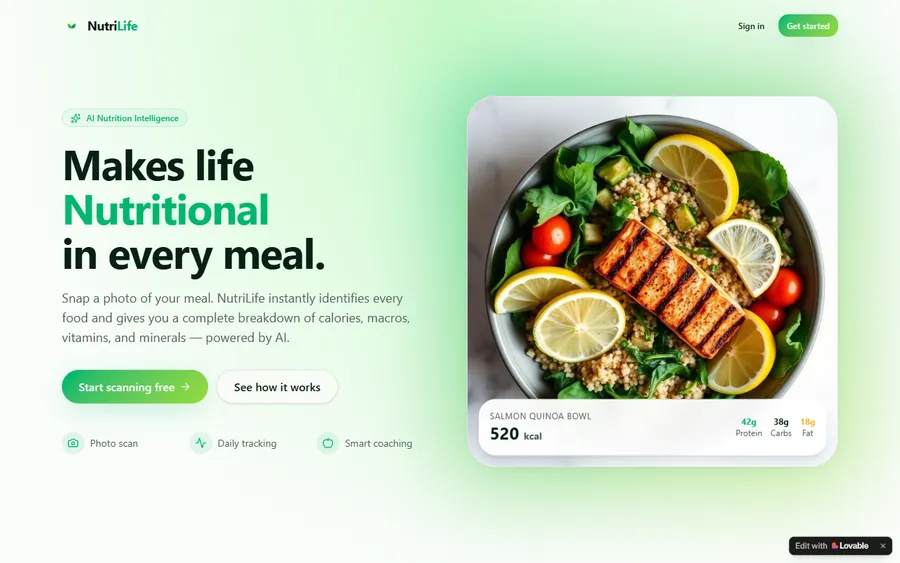
An AI nutrition coach that reads what you eat and works you toward a target.
AI and ML
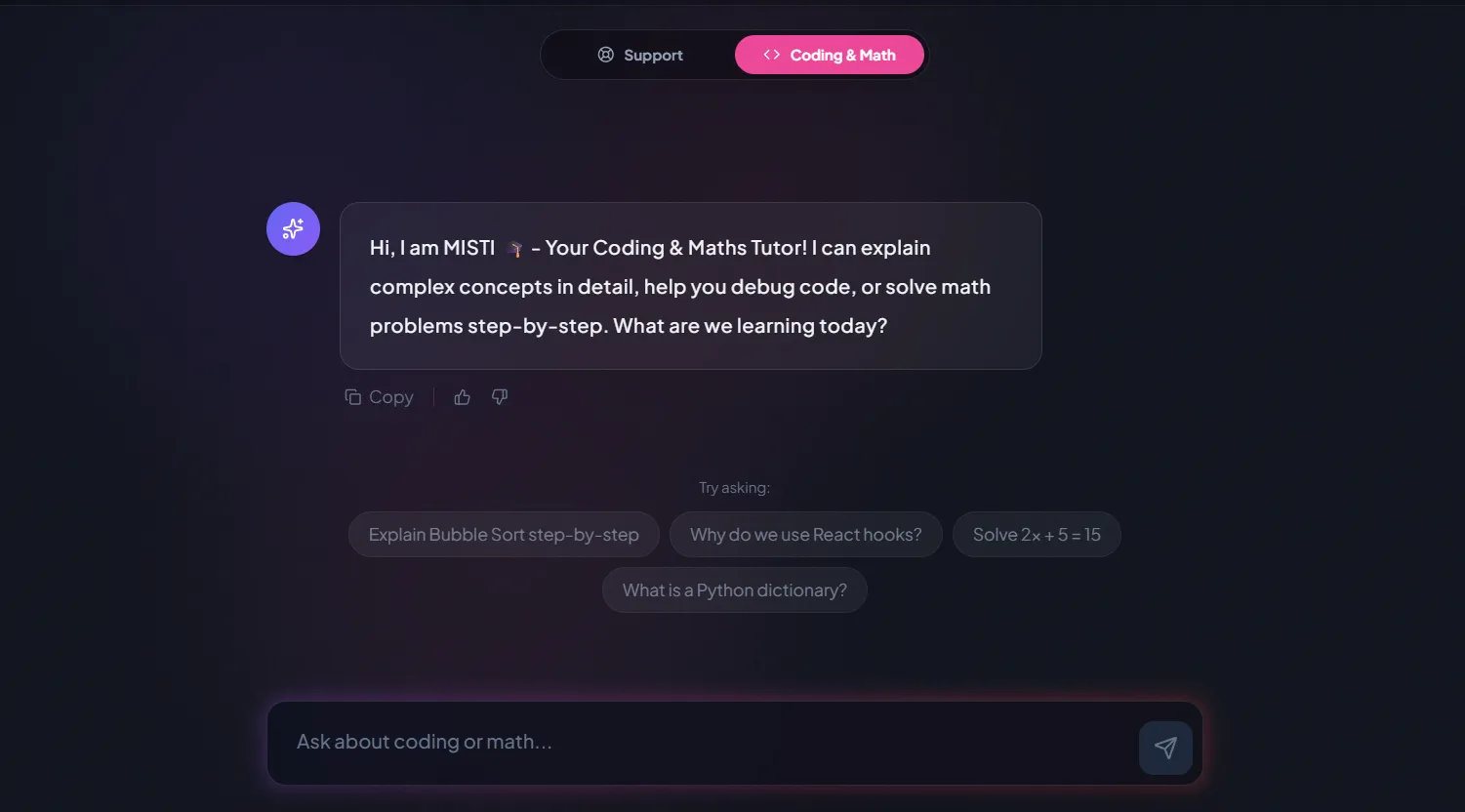
A chatbot that answers mathematics and programming questions, built and deployed by a student.

AI and ML
An assistant that helps a young person recognise unsafe situations online.
Web app
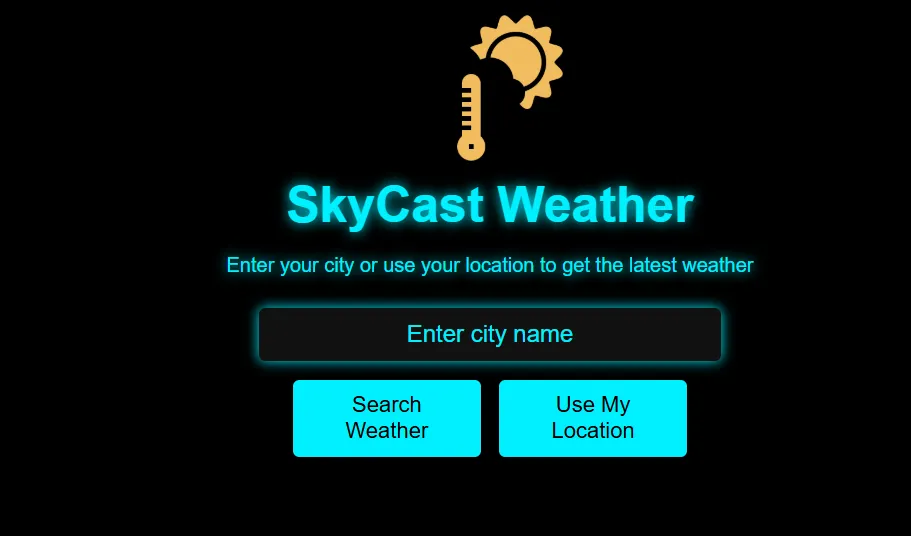
A weather forecasting site with live conditions for any location.
Fees
MakeCode Arcade costs nothing, and the first lesson is free too. Regular classes are paid for a month at a time, in US dollars, and you can stop after any month.
Free first class
USD 0
no card required
Group batch
USD 100
a month, billed in US dollars
One to one
USD 150
a month, billed in US dollars
What families say
Parent reviews from Google, unchanged.
★★★★★
"The one step solution for my son. Modern Age Coders make learning coding so simple that kids love it. The teachers explain complex concepts clearly with practical exercises and interactive content."
Ria Mukherjee
Parent
★★★★★
"Modern Age Coders has been a game-changer for me. I struggled to grasp IT concepts and coding before joining, but their classes transformed everything. I can now confidently write complex programs with ease."
Samriddha Mondal
Student
★★★★★
"One of the most wonderful education centres out there. Education is not limited to school syllabus but focuses on skill development."
Vansh Agarwal
Student
★★★★★
"My child Dhairya is really enjoying the Modern Age Coders classes. This is his first online class and he eagerly looks forward to it. I can already see his improvement, and the teachers are very cooperative."
Sonam Oswal
Parent of Dhairya
★★★★★
"Modern Age Coders have wonderful teachers who teach in a clear, easy and practical way. The teacher boosts students' confidence and inspires them to learn without hesitation."
Sonu Goyal
Parent
★★★★★
"I highly recommend this computer coding class! The teachers are incredibly knowledgeable and passionate about coding."
Ritu Kedia
Parent
Questions from students and parents
Set a positive ay on the sprite for gravity, then in an on A button pressed event set vy to a negative number, such as -150, but only if is hitting tile, bottom is true, so the sprite jumps from the floor.
Set the sprite's ay property, its vertical acceleration in pixels per second per second. A positive value speeds the sprite toward the bottom of the screen, which works as gravity.
The docs say is hitting tile returns false unless the sprite is moving, even when it touches a wall tile. Set gravity so the sprite keeps pressing on the floor, and make sure the floor tiles are walls.
Draw each level as a tilemap in the tilemap editor, then load it with set tilemap. A game can have several tilemaps, and setting a different one changes the level, for example when the player touches a goal tile.
In your browser's local data store on that computer. Clearing browsing data removes them, so download a copy with the Save icon or share the project before you leave a school computer.
If the browser data was cleared, only a copy saved elsewhere can bring it back: a downloaded project file, a shared link, or a GitHub repository with its commit history.
Yes. The web editor is cached the first time it loads, and Microsoft also offers an offline app for Windows and Mac computers. Adding a new extension needs an internet connection.
Yes. Besides blocks, it has a JavaScript view, using JavaScript with Static TypeScript, and a Python view. Students can switch views and see the same program as text.
No. We never write graded work or give answer keys. We teach the concept behind the assignment, such as velocity or tilemaps, so the student can complete it on their own.
Weekdays or weekends, flexible: choose your batch, or for a very personalised plan choose 1-on-1 at your convenience, weekend mornings or weekdays.
The first lesson is free. After that, classes are paid monthly, and the fees part of this page states that monthly price in US dollars.
Elsewhere on this site
More for US students who like making games.
Block coding for younger game makers.
Another MakeCode editor, in 3D.
How the popular tools compare.
Our full set of pages for US families.
What fits at that age.
A look inside a live class.
Roblox Studio errors from the Creator docs: 403, 502, HTTP, endless waits.
Khan Academy CS or live classes? A fair comparison, built from Khan Academy descriptions of its course.
CodeHS help: resets, debugger, unit tests, autograder messages and login fixes.
Start here
Send us the share link to your Arcade game, or just describe it. The teacher plays it before the lesson and plans the next step from there.
Want to know what a lesson is like first? Read how our classes run, or open any syllabus on our course list.
WhatsApp us · +91 91233 66161 · connect@modernagecoders.com
Our teaching team works from India, entirely over live video, so families in every US state join the same way. WhatsApp is the quickest channel for questions.
A priority demo is a full class of about 45 to 60 minutes. After the class the mentor sends a written skill report and a personal learning roadmap on WhatsApp. If you enrol, the demo fee is adjusted against your first month's fee. Share your demo Order ID with us on WhatsApp and we take it off.
Book a priority demo