Table of Contents
If you are new to coding, you will hear "Git" and "GitHub" in the same sentence so often that they start to sound like one thing. They are not. Mixing them up is one of the most common beginner confusions, and it causes real problems: people think they need an internet connection to save versions of their work, or that uploading files on the GitHub website is the same as using Git.
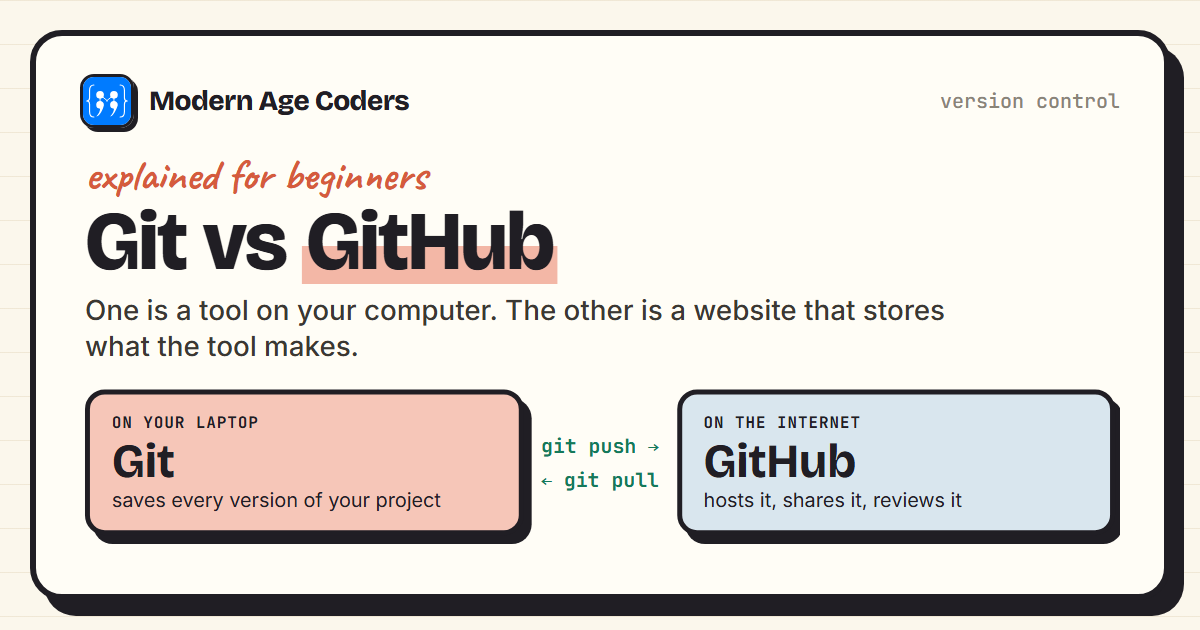
Here is the one-line answer, then the proper explanation. Git is a tool on your computer that records every version of a project. GitHub is a website that stores Git projects online and adds tools for sharing and working together. Below you will see a real Git session, run on a real project, with the exact output it produced, and the point where GitHub enters the picture.
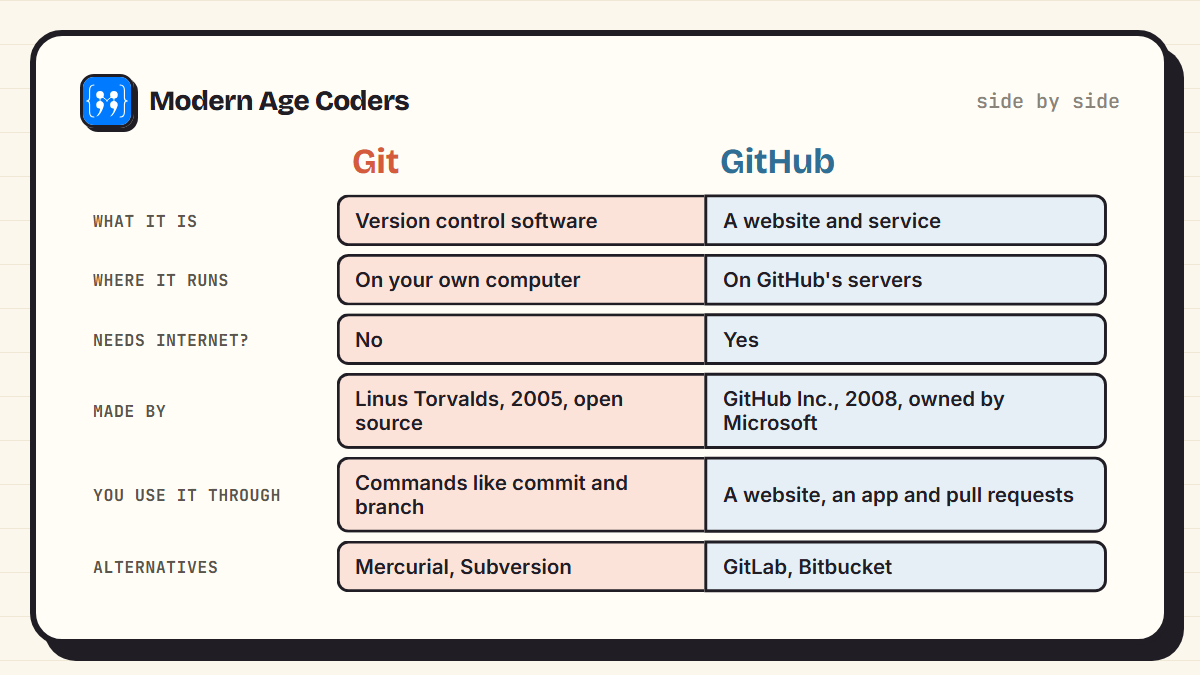
Git and GitHub side by side
A useful analogy: Git is like a camera that takes a snapshot of your whole project every time you ask it to, and remembers every snapshot forever. GitHub is like an online photo album where you can store those snapshots, share them, and let other people suggest edits. You can take photos without ever uploading them. And the album is only useful because a camera made the photos.
| Git | GitHub | |
|---|---|---|
| Type | Software you install | Website and cloud service |
| Works offline | Yes, completely | No |
| Created | 2005, by Linus Torvalds for the Linux kernel | 2008, acquired by Microsoft in 2018 |
| Cost | Free and open source | Free plan, with paid plans for teams |
| Main job | Track changes, branch, merge, undo | Host repositories, review code, collaborate |
| Can you use one without the other? | Yes, many teams use GitLab or Bitbucket instead | Only in a limited way, through the web editor |
What Git actually does, shown with a real session
The easiest way to understand Git is to watch it work. The commands below were run on a tiny quiz program, in a fresh folder, and the output is exactly what Git printed. There is no GitHub anywhere in this part, and no internet connection is needed.
$ git init --quiet
$ git status --short
?? quiz.py
$ git add quiz.py
$ git commit -m "Add first question"
[main (root-commit) bdfa4db] Add first question
 1 file changed, 1 insertion(+)
 create mode 100644 quiz.py
$ git commit -am "Add second question"
[main 08722c1] Add second question
 1 file changed, 1 insertion(+)
$ git log --oneline
08722c1 Add second question
bdfa4db Add first question
Here is what just happened, line by line:
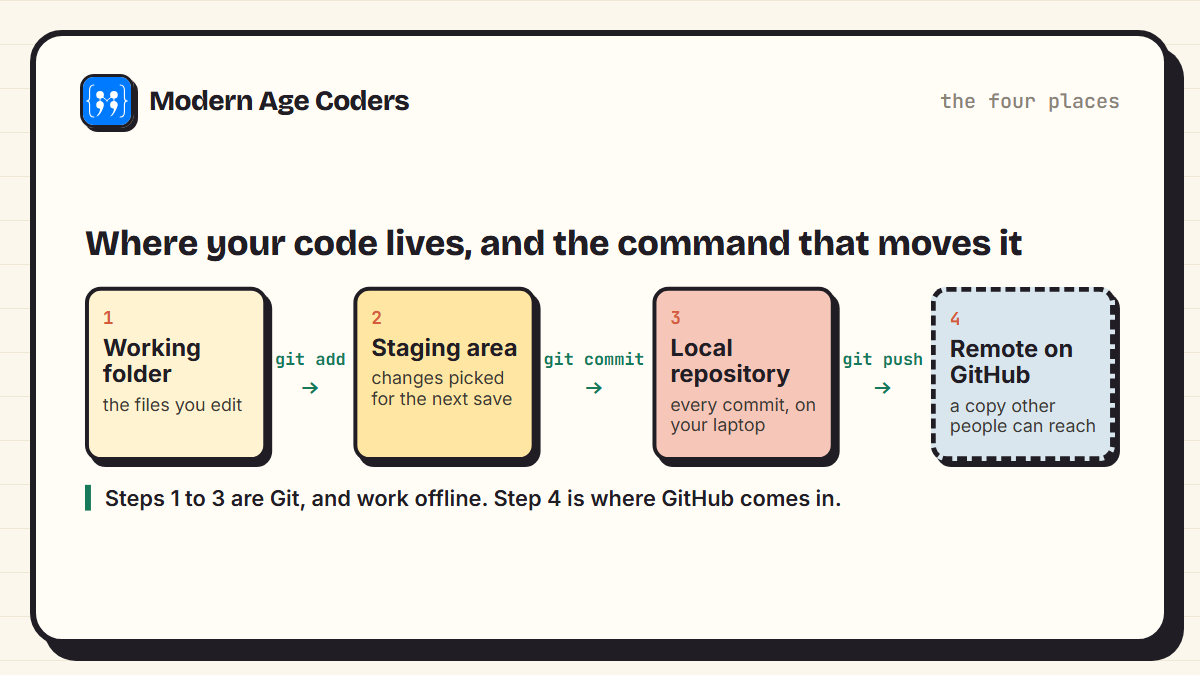
- git init turned an ordinary folder into a Git repository. Git creates a hidden .git folder where it keeps the entire history.
- git status showed ?? next to quiz.py, meaning Git can see the file but is not tracking it yet.
- git add picked the file for the next snapshot. This middle step, called staging, lets you choose exactly which changes go into each save.
- git commit took the snapshot and gave it an ID, bdfa4db. The -am version on the second commit stages and commits changed files in one go.
- git log listed the history, newest first. Every one of those snapshots can be restored at any time.
Commit little and often
A good commit is one small, complete change with a message that says what it does, like "Add second question". Future you will search these messages when something breaks. "Updated stuff" helps nobody.
Branches: trying ideas without breaking what works
Branches are the feature that makes Git worth learning properly. A branch is a separate line of work. You can build something experimental on a branch while the main version stays safe, then merge the two when you are happy. Here is the same project, continued:
$ git switch -c scoring
Switched to a new branch 'scoring'
$ git add score.py
$ git commit -m "Start keeping score"
[scoring 32194f2] Start keeping score
 1 file changed, 1 insertion(+)
 create mode 100644 score.py
$ git switch main
Switched to branch 'main'
$ git add README.md
$ git commit -m "Add a README"
[main 9972571] Add a README
 1 file changed, 1 insertion(+)
 create mode 100644 README.md
$ git merge scoring -m "Merge the scoring branch"
Merge made by the 'ort' strategy.
 score.py | 1 +
 1 file changed, 1 insertion(+)
 create mode 100644 score.py
$ git log --oneline --graph
*   4c927b0 Merge the scoring branch
|\
| * 32194f2 Start keeping score
* | 9972571 Add a README
|/
* 08722c1 Add second question
* bdfa4db Add first question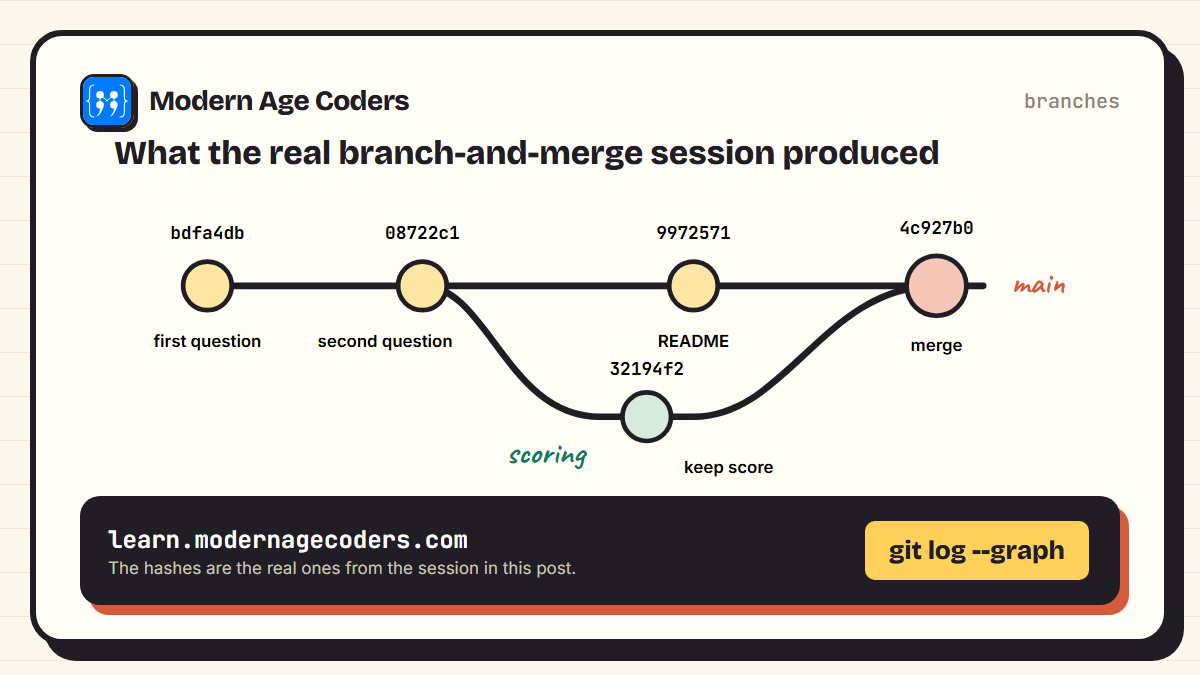
While the scoring feature was being built on its own branch, someone added a README on main. Git combined both lines of work automatically with a merge commit. On a real team, dozens of people do this every day on the same project, and it is Git, running on each person's laptop, that makes it possible.
Where GitHub comes in
So far everything has lived on one computer. That is fine for a solo project, but it has two problems: if the laptop dies, the history dies with it, and nobody else can work on the code. The fix is a remote: another copy of the repository somewhere else, which you push your commits to and pull other people's commits from.
Here is the key idea most tutorials skip. A remote is just another Git repository. To prove it, this session uses a folder next door as the remote instead of GitHub:
$ git remote add origin ../quiz-app-remote.git
$ git push -u origin main
branch 'main' set up to track 'origin/main'.
To ../quiz-app-remote.git
 * [new branch]      main -> main
$ git remote -v
origin	../quiz-app-remote.git (fetch)
origin	../quiz-app-remote.git (push)
That is the entire relationship. If you replace ../quiz-app-remote.git with a GitHub address, such as https://github.com/your-name/quiz-app.git, the commands are identical. GitHub is a very good, very popular place to keep that remote copy. It is not Git itself.
What GitHub adds that Git does not have
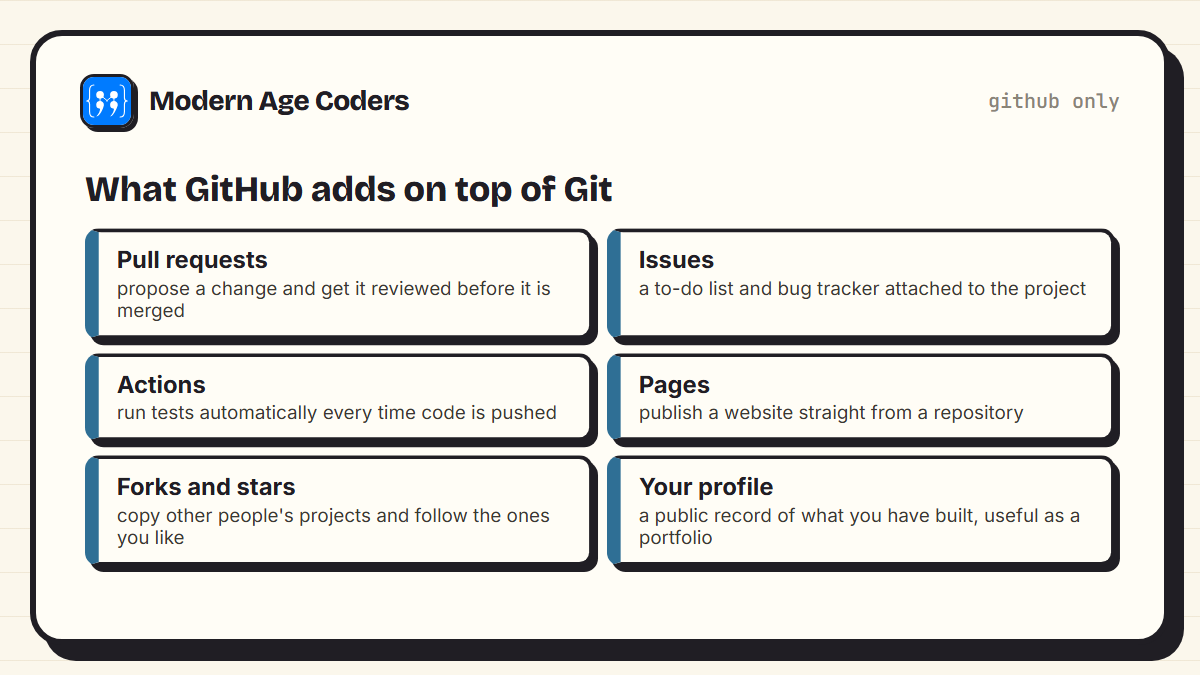
- Pull requests: a way to propose a change and have it discussed and reviewed before it is merged. This is how most professional teams work.
- Issues: a shared list of bugs, ideas and tasks attached to the project.
- GitHub Actions: automation that runs tests or deploys a website every time code is pushed.
- GitHub Pages: free hosting for simple websites, straight from a repository.
- Your profile: a public record of projects and contributions, which is why students and job seekers are told to "put it on GitHub".
Five confusions this clears up
- "I need the internet to use Git." No. Commit, branch, merge and view history all work offline. Only push, pull and clone talk to a remote.
- "I committed, so it is on GitHub." Not yet. A commit saves a snapshot on your laptop. It reaches GitHub only when you push.
- "Uploading files on the GitHub website is using Git." It creates a commit, but you skip everything that makes Git useful locally: staging, branches and meaningful history. Fine for a quick fix, not a way to learn.
- "GitHub Desktop is Git." GitHub Desktop is an app that runs Git commands for you with buttons. Useful, but learning the commands first makes the buttons make sense.
- "Downloading the ZIP is the same as cloning." A ZIP gives you the files. git clone gives you the files and the entire history, connected to the remote so you can pull updates.
Should students learn Git and GitHub?
Yes, and earlier than most do. Git is used by virtually every software team, and knowing it well is one of the clearest differences between someone who has done coding exercises and someone who has built software. For school and college students, a GitHub profile with a few real projects is also a practical way to show work to universities, internship programmes and employers. Our page on how to build a coding portfolio explains what makes one convincing.
A sensible order is: learn enough of one language to build a small project, then learn Git on that project, then put it on GitHub. Learning Git with nothing to track is abstract and quickly forgotten. Learning it on your own project, where losing work would actually hurt, makes it stick.
Git is the habit. GitHub is where other people can see that you have it.
How we teach Git
We teach Git and GitHub as a short live course, with every command typed on the learner's own project rather than watched on a slide, in line with the learning-by-building approach on our how we teach page. There are versions for teens and for college students. Classes are one to one or in small groups of 5 to 10.
Frequently asked questions
Git is version control software that runs on your computer and records every version of a project. GitHub is a website that hosts Git repositories online and adds collaboration tools like pull requests and issues. Git does the tracking. GitHub stores and shares what Git tracks.
Yes. Git works entirely on your own computer, offline, with no account anywhere. You only need a remote such as GitHub, GitLab or Bitbucket when you want a backup elsewhere or want to work with other people.
Partly. You can create files and make simple edits through the GitHub website, and each edit becomes a commit. But branching, merging and working locally all need Git, so for anything beyond small edits you will want to learn Git itself.
GitHub has a free plan that includes unlimited public and private repositories for individuals, along with paid plans for teams and companies that need extra features. Git itself is free and open source.
A commit saves a snapshot of your changes in your local repository, on your computer. A push sends your commits to a remote repository such as GitHub. You can make many commits and push them all together later.
GitHub has been owned by Microsoft since 2018. Git is an independent open-source project, originally created by Linus Torvalds in 2005 to manage development of the Linux kernel.
Learn the basic Git commands first, on a small project of your own: init, add, commit, log, branch and merge. Then create a GitHub account and push that project. GitHub makes much more sense once you understand what Git is doing underneath.