3DG / KID / 01
Scratch coding
Game logic in 2D first.
Open the syllabusUnited States · Ages 10 to 17 · 3D game making
Kids who have spent hours inside 3D worlds sooner or later want to build one of their own. It is possible, with free tools, on an ordinary home computer, but 3D asks for a few things that flat games do not: a computer that can run a 3D editor, a feel for three axes instead of two, and code that moves objects through space. This guide takes those one at a time. It compares three widely used tools, using each one’s own documentation, explains x, y and z in plain terms, lays out eight steps to a first playable 3D game, and finishes with a real script that makes a character run and jump.
Live teaching since 2020 · 10,000+ students · 3D games in Roblox Studio and Unity
In short
To make a 3D video game, a kid picks a free 3D tool that runs on their computer (Roblox Studio or Godot are good first choices; Unity suits older teens), learns how x, y and z place objects in space, builds a floor and a player, then writes code that moves the player and applies gravity. Modern Age Coders teaches 3D game building live online, ages 10 to 17.
Build it with a teacher
Two of them build in 3D from early on; the third lays the game-design groundwork first.
3DG / 01
For 8 to 14 year olds: a 3D world, physics and scripts from term one.
Open the syllabus →
3DG / 02
Teens 13 to 18 move into Unity and C#, from scenes to shipped games.
Open the syllabus →
3DG / 03
Ages 10 to 17: free, open-source Godot, from 2D scenes to a 3D game in GDScript.
Open the syllabus →Choose a tool
The first question is not which tool is most powerful. It is which one will actually run on the computer at home. Each tool publishes its requirements, and they differ more than most parents expect.
| Point | Roblox Studio | Godot | Unity |
|---|---|---|---|
| Cost to install | Roblox calls Studio a free application | Free and open source, MIT license | Not covered here; check Unity’s own plans |
| Windows | Yes | Windows 10 or later | Windows 10 version 21H1 or newer |
| Mac | Yes | macOS 10.13 or 10.15, by renderer | macOS Ventura 13 or newer |
| Chromebook, tablet, phone | Studio cannot run on Chromebooks or phones | A web editor (8 GB RAM) and an Android editor; iOS cannot run the editor | Workstations or laptops, without emulation |
| Language | Luau | GDScript, which Godot recommends for beginners, or C# | C#, the language our teen course teaches |
| Age guidance | Roblox typically recommends Studio for ages 10 and up | None published | None published |
| Who it suits (ours) | Ages 10 to 14 who already play Roblox | Ages 12 and up who like tinkering | Ages 14 and up ready for a professional engine |
Roblox’s education FAQ rules out Chromebooks and smartphones for building in Studio, and Unity lists its editor for workstations and laptops running without emulation, container or compatibility layer.
Of the three requirement pages we read, only Godot’s lists a web editor, with 8 GB of memory for it against 4 GB for the native editor. Check the Chromebook’s memory before planning around it; a Windows or Mac laptop is the simpler route.
The courses linked on this page build in 3D with Roblox Studio for younger students and Unity for teens. Godot is included because it is free, open source and well documented, and it makes a strong first engine for a tinkering teen.
The ideas carry across all three. A child who understands axes, velocity and gravity in Roblox Studio can read the Godot script further down this page.
Read on 17 October 2026: Roblox Studio setup, the Roblox education FAQ, Godot system requirements, the Godot license and Unity 6.6 system requirements. We are not connected with Roblox, the Godot project or Unity.
Thinking in 3D
A flat game places things with two numbers, across and down. A 3D game needs a third. Godot’s documentation explains its convention in three short lines, which make a good starting point for any 3D tool.
| Axis | Meaning in Godot | Color on screen |
|---|---|---|
| X | Sides: left and right | Red |
| Y | Up and down | Green |
| Z | Front and back | Blue |
| Scale | 1 unit is 1 meter, and physics is tuned for that | Grid squares are 1x1 meter by default |
In a flat game, y usually runs down the screen. In Godot’s 3D, Y is up, and the ground is the plane made by X and Z. The documentation says it directly: in 3D, the XZ plane is the ground plane.
That is why the movement code below changes x and z when a player walks, and changes y only to jump or fall. A value placed on the wrong axis is a classic first 3D bug.
If a player holds forward and right together, the direction has 1 on two axes at once. Godot’s tutorial points out that this vector has a length of about 1.4, so the player would move faster diagonally than straight.
The fix is one method, normalized(), which keeps the direction but sets the length back to 1. Children who meet this learn, without being told, a piece of geometry they will see again in math class: the diagonal of a unit square.
Sources: Godot’s Introduction to 3D and Moving the player with code, read 17 October 2026.
Step by step
This is the order we use with students in any 3D tool. It keeps the first game small enough to finish, which matters more in 3D than anywhere else.
A 3D world invites big plans: a city, a castle, a whole planet. Children who start there spend weeks building scenery and never write the code that makes it a game.
One floor, one player, one goal, playable in a week, teaches every core idea. Scenery can come afterward, and it is far more fun when the game underneath works.
Our plan for ages 10 to 12 reaches step 6 in about six sessions in Roblox Studio, where the avatar and its movement already exist. In Godot or Unity, writing movement yourself adds a few sessions to that plan.
That is not wasted time. Writing the movement code by hand is exactly where the three axes stop being abstract.
Real code
This is the core of a 3D platformer, in GDScript. It follows the structure of Godot’s own Squash the Creeps tutorial, uses the same starting numbers, and uses only methods its documentation describes.
# player.gd on a CharacterBody3D (ours, Godot 4)
extends CharacterBody3D

@export var speed = 14  # meters per second
@export var fall_acceleration = 75
@export var jump_impulse = 20

var target_velocity = Vector3.ZERO

func _physics_process(delta):
    var direction = Vector3.ZERO
    if Input.is_action_pressed("move_right"):
        direction.x += 1
    if Input.is_action_pressed("move_left"):
        direction.x -= 1
    if Input.is_action_pressed("move_back"):
        direction.z += 1
    if Input.is_action_pressed("move_forward"):
        direction.z -= 1
    if direction != Vector3.ZERO:
        direction = direction.normalized()

    # x and z: the ground plane
    target_velocity.x = direction.x * speed
    target_velocity.z = direction.z * speed

    # y: up and down
    var jump = Input.is_action_just_pressed("jump")
    if is_on_floor() and jump:
        target_velocity.y = jump_impulse
    if not is_on_floor():
        target_velocity.y -= fall_acceleration * delta

    velocity = target_velocity
    move_and_slide()
Attach it to a CharacterBody3D that has a collision shape. Before it runs, create five input actions in Project Settings, Input Map: move_left, move_right, move_forward, move_back and jump. The script only reads action names, so the keys are yours to choose.
The jump starts at 20 meters per second upward, and gravity takes away 75 meters per second every second. So the character reaches the top after 20 / 75 = 0.27 seconds.
The height is 20 x 20 / (2 x 75) = 400 / 150 = 2.67 meters. With Godot’s default grid of 1-meter squares, that is a jump onto a box between two and three squares tall.
Every frame, _physics_process works out a direction from the keys, sets the speed on x and z, then handles y: a jump if the jump key was just pressed on the floor, gravity if the character is in the air. move_and_slide then moves it and handles collisions with walls and slopes.
At a speed of 14, one second of running covers 14 meters, fourteen grid squares. Changing that one number is a good first experiment.
Set jump_impulse to 30. How high is the jump now? (900 / 150 = 6 meters.)
Halve fall_acceleration to 37.5. What happens to the height? (It doubles, to about 5.33 meters.)
Remove normalized() and walk diagonally. Is the character faster? (Yes, about 1.4 times.)
Start in 3D or not
Godot’s own 3D tutorial answers this honestly: if you are new to game development, it recommends starting with 2D, because 3D game code is always more complex.
A child who already knows a 3D tool as a player, most often Roblox, can start building in 3D straight away, because the editor does a lot of the hard work: the camera, the avatar and its movement already exist.
Roblox’s education team says younger students typically focus on the creation and design of environments, and that suits a first 3D project well: build the world first, then script it.
If a child wants to write the movement code themselves, as in the Godot script above, a few weeks of 2D games first makes 3D far less confusing. Velocity and gravity are easier to see on two axes.
Our game course for younger kids begins in Scratch and moves into Roblox’s 3D worlds once the ideas are solid.
| Age | Start with | Then |
|---|---|---|
| 8 to 10 | Scratch or another 2D tool | Roblox Studio building, then simple scripts |
| 10 to 13 | Roblox Studio | Luau scripts for movement, scores and goals |
| 13 to 15 | Roblox Studio or Godot | Writing a 3D character controller by hand |
| 15 to 17 | Unity with C# | A complete 3D game with menus, levels and a build |
For Roblox specifically, how to make a Roblox game walks through Studio, scripts and publishing. For 2D starts, see Scratch coding classes, and for the language behind many engines, C++ game development.
From player to 3D builder
Where a child might be when they ask how 3D games are made, and what comes next.
| Stage | What it looks like |
|---|---|
| 1. Explorer | Flies the camera around an editor and places objects |
| 2. World builder | Builds levels from parts, with lighting and color |
| 3. Scripter | Writes movement, gravity and goals in code |
| 4. Game maker | Tunes the numbers so the game feels fair and fun |
Stage 2 can last a long time, and that is fine. Building worlds teaches spatial thinking that pays off in math and science.
Stage 3 is the hard climb. Vectors and axes click faster when someone sketches them beside the running game.
Name your axes out loud when you code: x is sideways, y is up, z is forward and back. It saves a lot of bugs.
Make it small and finish it. One level you can play beats a huge world you cannot.
The catalogue
Each is taught live, in a group batch or one to one, by a teacher who stays with the student.
3DG / KID / 01
Game logic in 2D first.
Open the syllabus3DG / KID / 02
Build and script 3D worlds.
Open the syllabus3DG / KID / 03
Code that builds in a 3D world.
Open the syllabus3DG / TEN / 01
Unity, C# and 3D scenes.
Open the syllabus3DG / TEN / 02
The language under game engines.
Open the syllabus3DG / TEN / 03
Vectors and logic in code.
Open the syllabus3DG / PRO / 01
Professional engines, start to finish.
Open the syllabus3DG / PRO / 02
Games that run in the browser.
Open the syllabus3DG / PRO / 03
A game built with a team in a weekend.
Open the syllabusHow lessons run
Weekdays or weekends, flexible: choose your batch, or for a very personalised plan choose 1-on-1 at your convenience, weekend mornings or weekdays.
Weekdays
Batches after school in every US time zone.
Weekends
Morning batches with time to build.
1-on-1
Times arranged around your child.
The teacher sees the 3D view live.
X, y and z explained on the student’s own game.
Roblox Studio or Unity, by age and goal.
One person who knows the project.
Online, in any state.
A batch of fifteen to twenty, or one to one.
Student work
Some of the projects our students have finished. More on the student labs page.
AI and ML
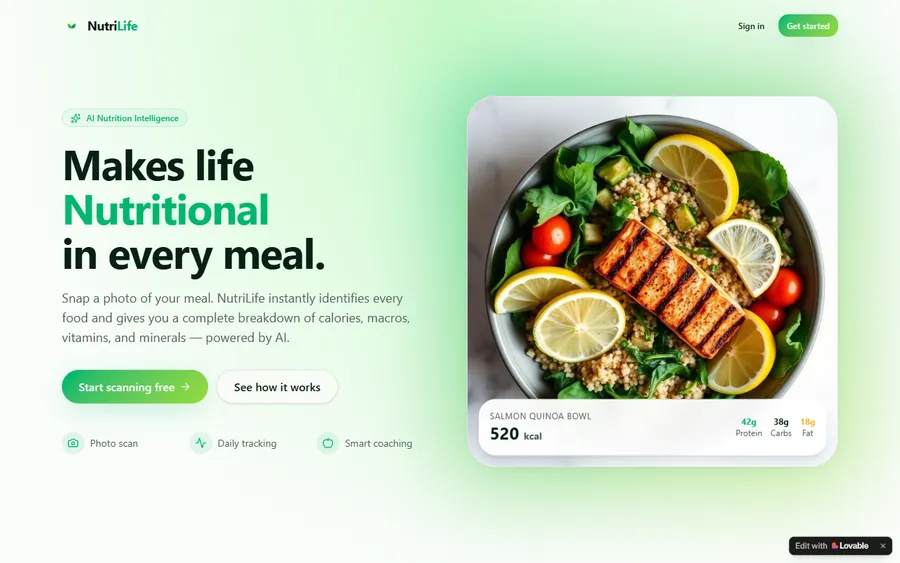
An AI nutrition coach that reads what you eat and works you toward a target.
AI and ML
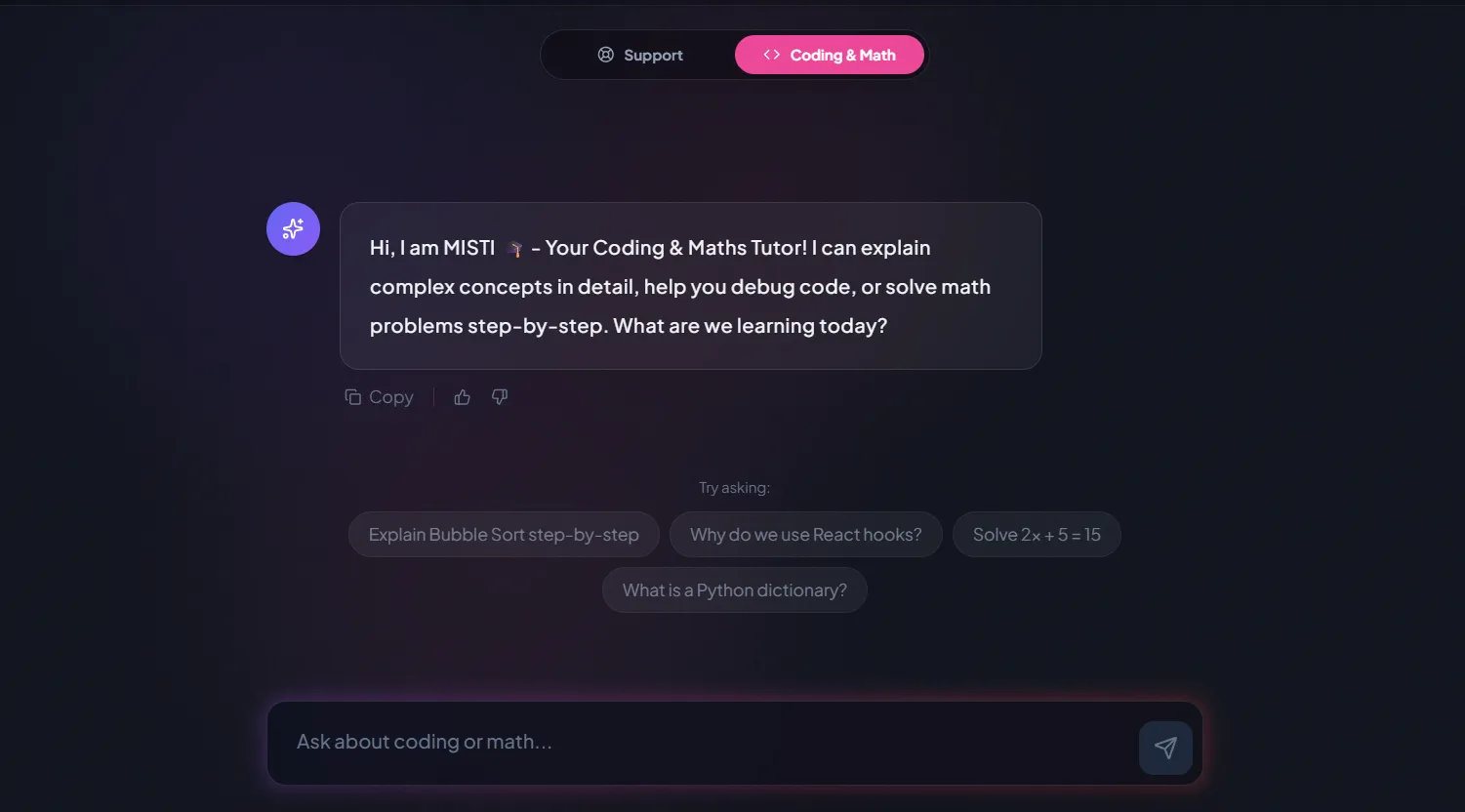
A chatbot that answers mathematics and programming questions, built and deployed by a student.
AI and ML
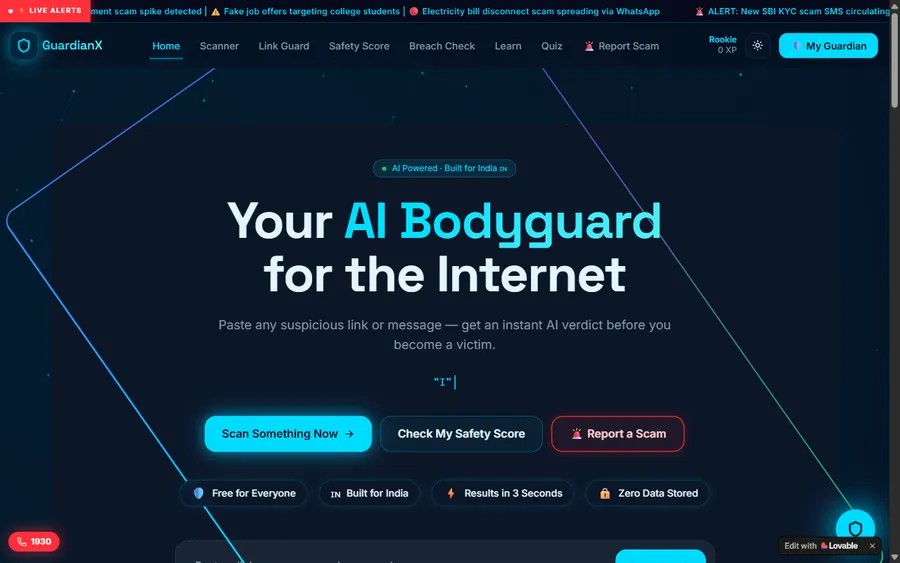
An assistant that helps a young person recognise unsafe situations online.
Web app
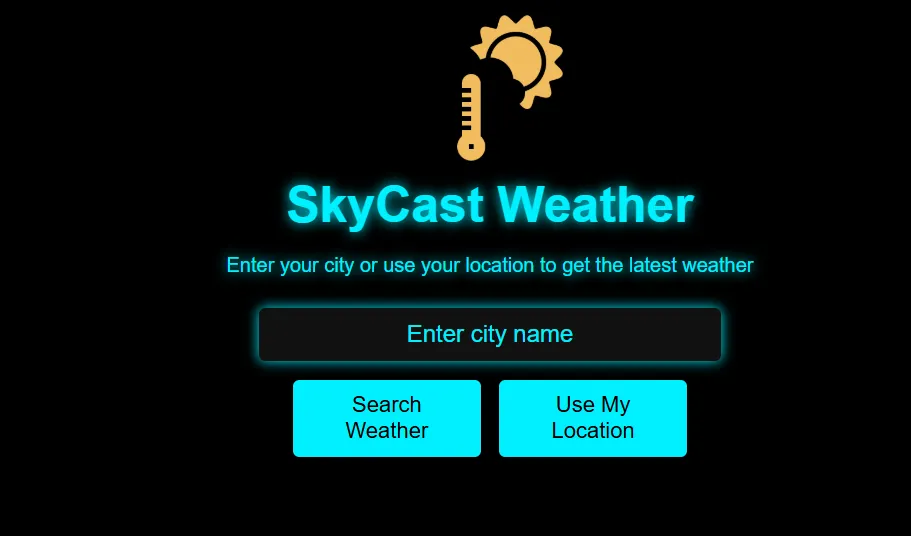
A weather forecasting site with live conditions for any location.
Fees
Roblox Studio and Godot are free to install, and the first lesson is free as well. Classes are paid month by month in US dollars, with no term contract, and you can stop after any month.
Group batch
USD 100
a month, billed in US dollars
What families say
Parents’ Google reviews, left exactly as posted.
★★★★★
"The one step solution for my son. Modern Age Coders make learning coding so simple that kids love it. The teachers explain complex concepts clearly with practical exercises and interactive content."
Ria Mukherjee
Parent
★★★★★
"Modern Age Coders has been a game-changer for me. I struggled to grasp IT concepts and coding before joining, but their classes transformed everything. I can now confidently write complex programs with ease."
Samriddha Mondal
Student
★★★★★
"One of the most wonderful education centres out there. Education is not limited to school syllabus but focuses on skill development."
Vansh Agarwal
Student
★★★★★
"My child Dhairya is really enjoying the Modern Age Coders classes. This is his first online class and he eagerly looks forward to it. I can already see his improvement, and the teachers are very cooperative."
Sonam Oswal
Parent of Dhairya
★★★★★
"Modern Age Coders have wonderful teachers who teach in a clear, easy and practical way. The teacher boosts students' confidence and inspires them to learn without hesitation."
Sonu Goyal
Parent
★★★★★
"I highly recommend this computer coding class! The teachers are incredibly knowledgeable and passionate about coding."
Ritu Kedia
Parent
Questions from families
Choose a free 3D tool that runs on your computer, such as Roblox Studio or Godot, place a floor and a player, then write code that moves the player on the ground and adds gravity and a jump. Start with one goal, finish it, then grow it.
For a child who already plays Roblox, Roblox Studio, because the camera, avatar and movement are built in. Roblox typically recommends Studio for ages 10 and up.
Not in Roblox Studio, which the Roblox education FAQ rules out on Chromebooks, and Unity lists its editor for computers running without emulation. Godot publishes a web editor that it says needs 8 GB of memory, so check the Chromebook first.
Yes. Godot is free and open source under the MIT license, and its license terms do not apply to the games you make with it.
It depends on the tool: Luau in Roblox Studio, GDScript or C# in Godot, and C# in Unity. Godot recommends GDScript for beginners and says it looks like Python.
Often, yes. Godot's own 3D tutorial recommends starting with 2D if you are new to game development, because 3D code is more complex. Children building in Roblox Studio can start in 3D sooner.
Coordinates on three axes, vectors, speed and gravity. Working out how high a character jumps is a real physics calculation, and normalizing a diagonal direction is geometry.
Godot lists 4 GB of memory for its native editor on Windows 10 or later. Unity 6.6 lists Windows 10 version 21H1 or newer, or macOS Ventura 13 or newer. Roblox Studio runs on Windows and Mac.
Weekdays or weekends, flexible: choose your batch, or for a very personalised plan choose 1-on-1 at your convenience, weekend mornings or weekdays.
Nothing for the trial lesson. Regular classes are charged per month, and you will find that monthly price in US dollars in the fees block above.
Elsewhere on this site
Further reading for kids who want to build worlds.
Studio, Luau and publishing.
Live lessons in Roblox Studio.
The language under many engines.
A 2D start for younger kids.
Where every US guide of ours starts.
Inside a live lesson.
Godot for kids and teens: cost, devices, two GDScript scripts and the errors beginners hit.
Unity for teens: age rules, free plans, computer needs and two first C# scripts.
Game design for teens: a method, real tuning code, and the US competitions that judge teen games.
Start here
Tell us your child’s age, the computer they use, and the kind of 3D game they dream about. The teacher picks the right tool before the lesson starts.
To see the method first, read how we teach, or open a syllabus from the course list.
WhatsApp us · +91 91233 66161 · connect@modernagecoders.com
All teaching is live on video from our team in India, so there is no center to visit, wherever you live in the US. WhatsApp reaches us fastest.
A priority demo is a full class of about 45 to 60 minutes. After the class the mentor sends a written skill report and a personal learning roadmap on WhatsApp. If you enrol, the demo fee is adjusted against your first month's fee. Share your demo Order ID with us on WhatsApp and we take it off.
Book a priority demo