APDV / KID / 01
App Making for Kids
Real apps with blocks.
Open the syllabusAustralia · Ages 8 to 67 · Apps for phones and tablets
An app is judged in the first few seconds by a thumb, not a mouse. Buttons that are too small, too close together or impossible to reach one-handed make good code feel broken. Our app development course teaches Australians from age 8 to 67 to design for touch from the first screen, then build, test on a real phone and improve. Children start with blocks, teenagers move to a cross-platform framework, and adults or university students go further into native tools. On this page we show where app development appears in Australian schools and universities, compare the three main ways to build an app, explain publishing for under-18s, and measure every tappable target on this very page against the international accessibility standard.
Live teaching since 2020 · 10,000+ students · apps designed for a thumb and tested on a phone
In short
An app development course teaches how to design, build, test and publish software for phones and tablets. Beginners use block tools; later students use a cross-platform framework such as React Native or Flutter, or native tools for iOS and Android. Good courses teach touch-friendly design: WCAG 2.2 sets a 24 by 24 pixel minimum target size. Modern Age Coders teaches app development live online to Australians aged 8 to 67, and the first lesson is free.
Start here
Blocks for children, a JavaScript framework for teens, and Flutter with native tools for adults. Open a card to read the syllabus.

APDV / 01
Ages 8 to 12: real apps built with blocks, with buttons, screens and simple data.
Open the syllabus →
APDV / 02
React Native for 13 to 18: one codebase, two platforms, tested on the student's own phone.
Open the syllabus →
APDV / 03
Flutter, iOS and Android: architecture, state, storage and release preparation.
Open the syllabus →Apps at school and uni
Mobile apps are not a separate school subject in Australia, but the ideas behind them run from Year 9 into first and second-year university units.
| Where | What the document says | In practice |
|---|---|---|
| Australian Curriculum, Years 9 and 10 (AC9TDI10P07) | Students "design and prototype the user experience of a digital system", for example with "a no-code user interface prototyping tool to design a simple mobile app" | Screens and flows are designed before code |
| Australian Curriculum, Years 9 and 10 (AC9TDI10K01) | The operating system lets applications "treat input from a mouse and touch screen in the same way" | Touch is an input the system abstracts; size is still the designer's job |
| Monash, FIT2081 | Object-oriented development "in the context of mobile application development for smartphones and tablets" | A full unit built around phone apps |
| UQ, COMP2140 Web/Mobile Programming | Students produce "interactive, cross-platform web/native apps using JavaScript frameworks" | One codebase for web and phone |
ACARA puts prototyping before programming for a reason: most app problems are design problems. A wireframe tested with three people catches more issues than a week of coding.
Our students sketch every screen, mark every tappable area and test the sketch before writing a line.
The same Years 9 and 10 content asks students to make content accessible with built-in features, such as text alternatives that screen readers can announce.
We treat target sizes, labels and contrast as requirements, checked like any other test.
Sources, read 13 October 2026: ACARA, Digital Technologies Years 7 to 10; Monash FIT2081; UQ COMP2140.
A worked example
WCAG 2.2, the W3C accessibility standard, sets a minimum size for anything a finger or pointer must hit. We wrote a short script to check this page against it at phone width, the same audit students run on their own apps.
Success criterion 2.5.8, at Level AA, says "The size of the target for pointer inputs is at least 24 by 24 CSS pixels", with exceptions. The two that matter most are Spacing, where a small target still passes if a 24 pixel circle centred on it touches no other target or circle, and Inline, for links inside a sentence. A stricter criterion, 2.5.5 Target Size (Enhanced) at Level AAA, asks for 44 by 44. Our script loaded this page in Chromium at 390 pixels wide, listed every link, button and form field, and tested each one.
| Check | Targets | What it means |
|---|---|---|
| Targets measured (sticky booking bar excluded) | 63 | Links, buttons and form fields that are visible |
| Smaller than 24 by 24 in at least one direction | 36 | A size-only check would flag all of these |
| Of those, links inside a sentence | 9 | Exempt under the Inline exception |
| Of those, standalone small targets | 27 | Must pass the Spacing test instead |
| Standalone small targets passing the Spacing test | 27 | Their 24 pixel circles touch nothing else |
| Failing 2.5.8 after both exceptions | 0 | Real problems to fix |
| Smaller than 44 by 44 in at least one direction | 46 | Short of the stricter AAA criterion |
Flagging every target under 24 pixels would have listed 36 problems. Applying the exceptions properly left 0. An audit that ignores the rules it is checking produces noise, and people learn to ignore noise.
46 of 63 targets are below 44 by 44. They are legal, but a reader with a tremor or a large thumb will still miss some of them. Apps aimed at older users or children deserve the larger size.
The Inline test is judged by a rule of thumb (a link inside a longer run of text), and the User Agent and Essential exceptions are not modelled. A human review still follows any automated check.
For an app you are designing from scratch, the clever exceptions are not worth it. "Every tappable thing is at least 44 by 44" is one sentence, needs no geometry and passes both criteria.
The spacing calculation earns its keep only when auditing a design you cannot change, which is exactly where we used it.
The script is about forty lines: list elements, read their boxes, apply the rules. Students run it on their own apps each week and keep the numbers in a table, so improvement is visible.
Native apps use their platform's accessibility inspectors, but the rule being checked is the same.
Standard: W3C, Web Content Accessibility Guidelines 2.2, W3C Recommendation 12 December 2024, success criteria 2.5.8 and 2.5.5. Measurement: our script, Playwright with Chromium, viewport 390 by 844 CSS pixels; the page changes as it is edited, so the figures are dated.
Three routes
Each route suits a different learner and a different app. None is a wrong first choice; switching later is normal.
| Route | Tools | Strengths | Costs |
|---|---|---|---|
| Native | Swift for iOS, Kotlin for Android | Full access to the device and its accessibility tools | Two codebases for two platforms |
| Cross-platform | React Native, Flutter | One codebase for both; large communities | Some device features need extra work |
| Web and installable web apps | HTML, CSS, JavaScript | Runs anywhere; no store account needed | Less access to phone hardware |
Children make block apps first, because the screen, button and event ideas are identical in every later tool. Teenagers then learn JavaScript and React Native, which also opens up the web.
Adults choose by goal: Flutter for one codebase, Swift or Kotlin for platform depth.
State that survives a phone call interrupting the app, data saved to the device, screens that work in portrait and landscape, and targets a thumb can hit.
These are taught as habits, not as features of one framework.
Publishing
Building an app needs no account. Putting it in a store does, and stores set their own rules for who may hold a developer account.
We do not ask under-18s to open store developer accounts in their own names. Their apps run on their own phones during development, and a finished app can be shared as an installable web app, which needs no store at all.
Families who want a store listing do it through a parent or guardian's account, under that store's own terms, read by the family.
Adults set up their own developer accounts when an app is ready, and we cover the review process: privacy information, screenshots, testing builds and responding to reviewer feedback.
Most first apps never need a store; a working app shared with friends is already a real result.
| Age | Typical app | How it is shared |
|---|---|---|
| 8 to 12 | A quiz, a pet-care timer, a story with choices | Inside the block tool, on a family device |
| 13 to 15 | A habit tracker or class timetable app | As an installable web app or a test build on their own phone |
| 16 to 17 | An app with sign-in and stored data | Installable web app; store listing only through a parent's account |
Inside the course
An outline of a ten-week term for a teenager in our cross-platform course. Children and adults follow the same arc with different tools.
| Weeks | Focus | Finished by the end |
|---|---|---|
| 1 to 2 | Sketches, user stories and a clickable prototype | A tested paper or no-code prototype |
| 3 to 4 | Screens, layout and navigation | Three working screens with 44 pixel targets |
| 5 to 6 | State and saving data on the device | Data that survives closing the app |
| 7 | Accessibility review | Labels, contrast and target audit passed |
| 8 to 9 | Fetching data and handling no connection | A friendly offline message instead of a crash |
| 10 | Testing with real users and a demo | A short demo and a list of next fixes |
Progress
Students who build weekly usually reach the third level in two to three terms.
| Level | What you can do |
|---|---|
| 1. Screen maker | Lay out a screen with buttons that respond to touch |
| 2. Flow builder | Link several screens and keep track of what the user chose |
| 3. App builder | Save data, handle errors and pass an accessibility audit |
| 4. Releaser | Prepare a build others can install, test it with users and fix what they find |
No. Block apps run on a computer or a family tablet, and teen projects can be tested in an emulator on a laptop.
A phone helps later, because nothing replaces testing with a real thumb.
Cross-platform, unless there is a clear reason to choose one platform. One codebase halves the first year's work.
Native comes naturally afterwards for those who want it.
The catalogue
Three bands by age. Several students take one app course and one supporting course in parallel.
APDV / KID / 01
Real apps with blocks.
Open the syllabusAPDV / KID / 02
Pages that work on any phone.
Open the syllabusAPDV / KID / 03
Scratch to games, apps and AI.
Open the syllabusAPDV / TEN / 01
React Native, both platforms.
Open the syllabusAPDV / TEN / 02
The language under the framework.
Open the syllabusAPDV / TEN / 03
Components and state.
Open the syllabusAPDV / ADL / 01
Dart to cross-platform apps.
Open the syllabusAPDV / ADL / 02
SwiftUI from zero.
Open the syllabusAPDV / ADL / 03
Native Android apps.
Open the syllabusHow lessons run
The team teaches from India during hours that line up with Australian after-school and evening times. Bookings are made in the learner's own state time, and shift when that state changes its clocks.
After school
Children and teenagers, on weekdays.
Evening
Adults and university students, by arrangement.
Weekend
Longer build and testing sessions.
One screen designed and built together, then advice on the right route.
Fifteen to twenty learners testing each other's apps.
For a specific app idea, a unit or a deadline.
Students test on real devices whenever they can.
Every app gets a target and label audit.
Teachers advise; learners design and type.
Student work
Live work from our learners, still online. The student labs hold a longer list.
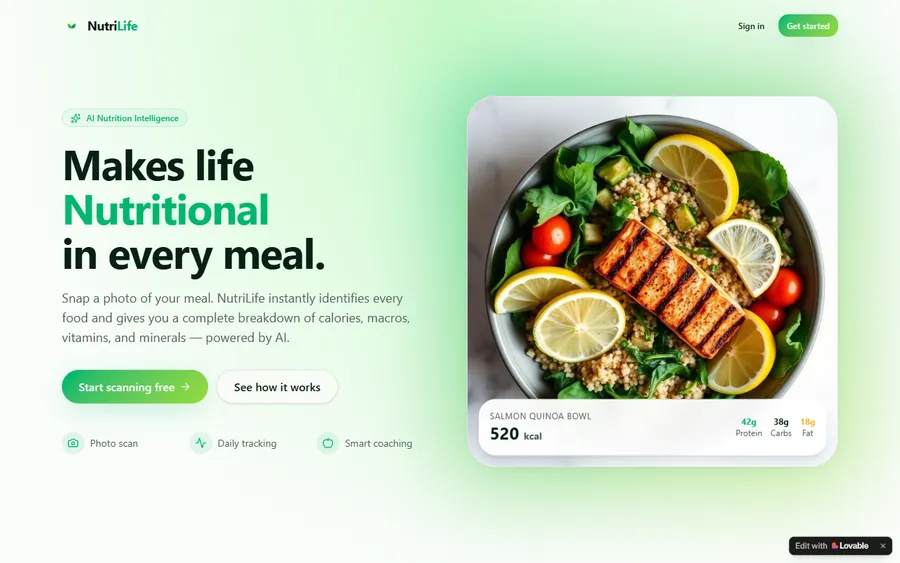
AI and ML
An AI nutrition coach that reads what you eat and works you toward a target.
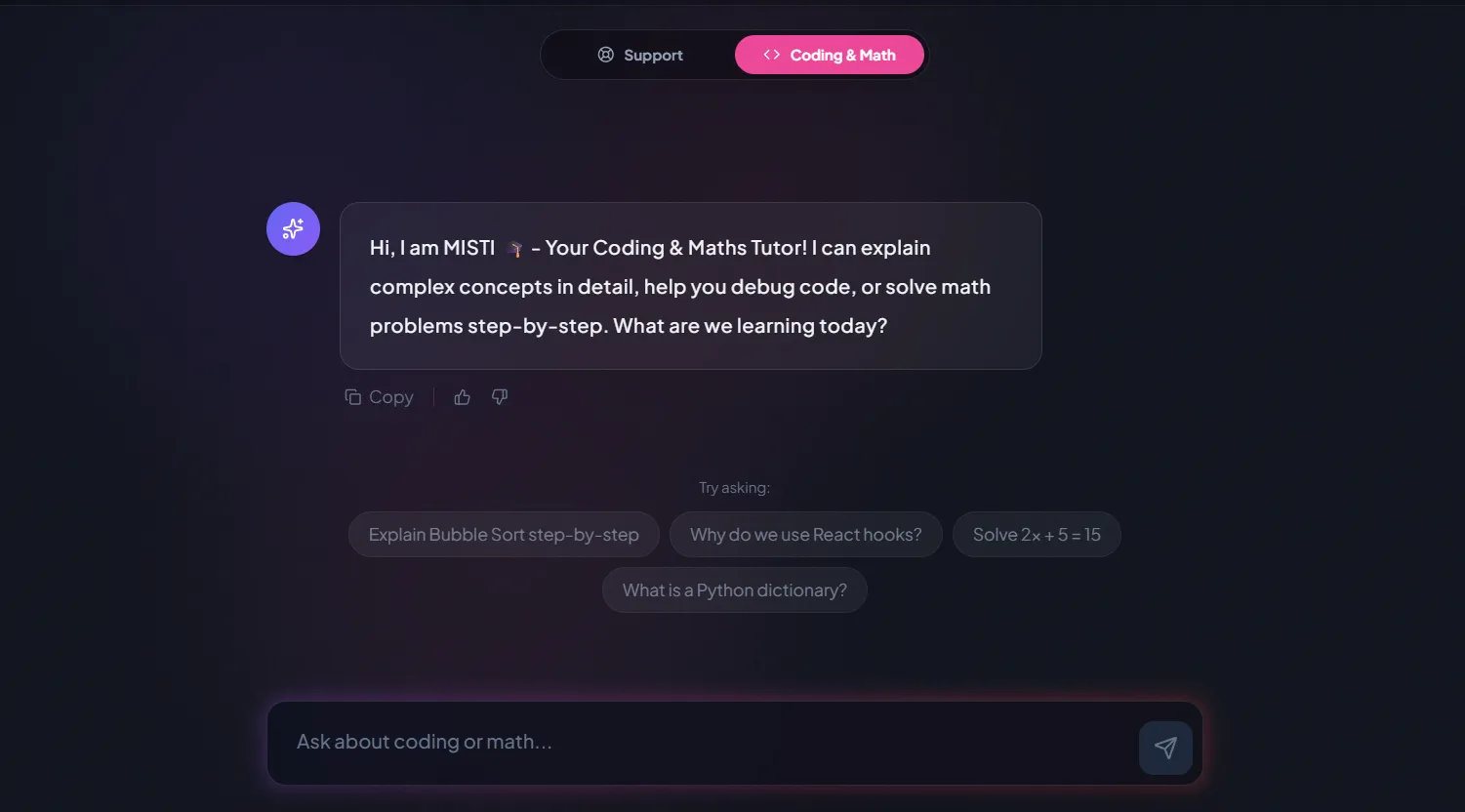
AI and ML
A chatbot that answers mathematics and programming questions, built and deployed by a student.
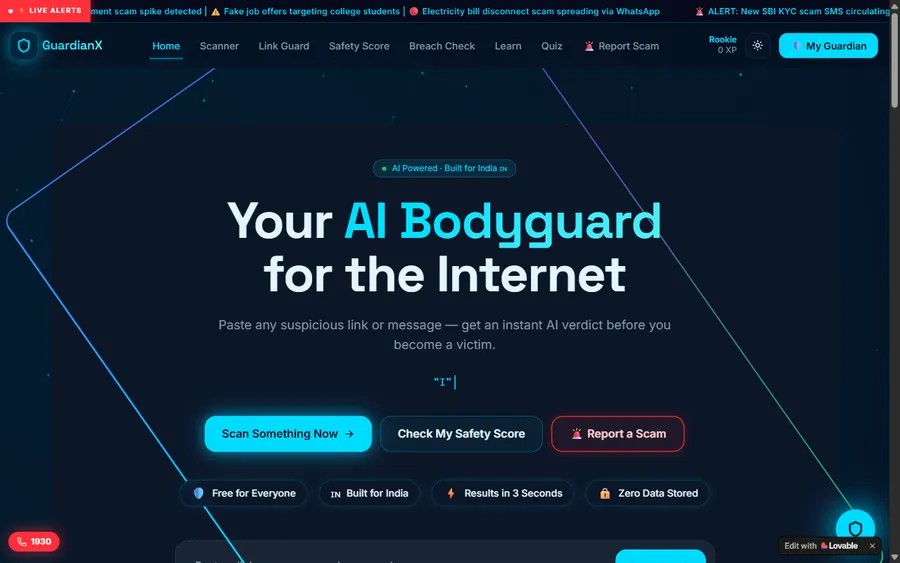
AI and ML
An assistant that helps a young person recognise unsafe situations online.
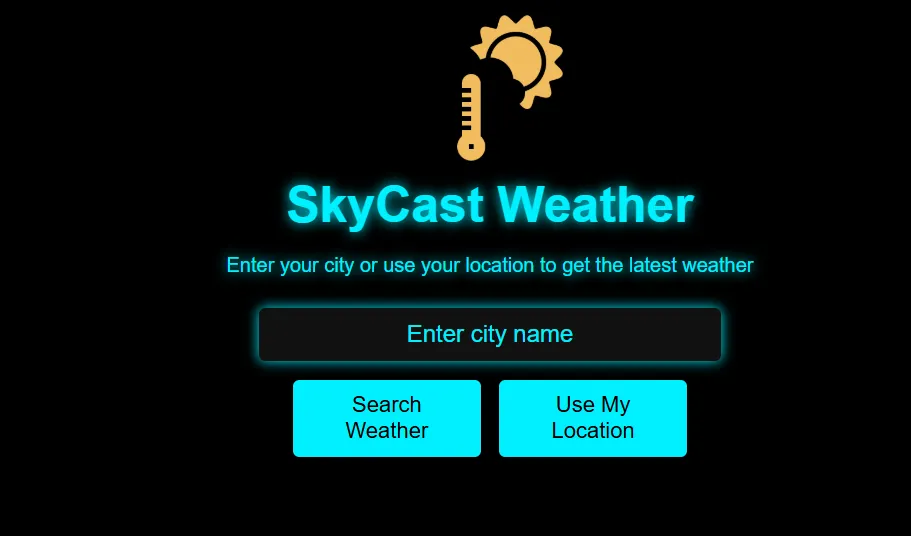
Web app
A weather forecasting site with live conditions for any location.
Fees
Learners in Australia are charged a flat monthly amount in US dollars. Nothing is due when enrolling, and lessons can stop at any month's end.
Free first class
USD 0
no card required
Group batch
USD 100
a month, billed in US dollars
One to one
USD 150
a month, billed in US dollars
What families say
These are reviews posted publicly on Google, quoted exactly as written.
★★★★★
"The one step solution for my son. Modern Age Coders make learning coding so simple that kids love it. The teachers explain complex concepts clearly with practical exercises and interactive content."
Ria Mukherjee
Parent
★★★★★
"Modern Age Coders has been a game-changer for me. I struggled to grasp IT concepts and coding before joining, but their classes transformed everything. I can now confidently write complex programs with ease."
Samriddha Mondal
Student
★★★★★
"One of the most wonderful education centres out there. Education is not limited to school syllabus but focuses on skill development."
Vansh Agarwal
Student
★★★★★
"My child Dhairya is really enjoying the Modern Age Coders classes. This is his first online class and he eagerly looks forward to it. I can already see his improvement, and the teachers are very cooperative."
Sonam Oswal
Parent of Dhairya
★★★★★
"Modern Age Coders have wonderful teachers who teach in a clear, easy and practical way. The teacher boosts students' confidence and inspires them to learn without hesitation."
Sonu Goyal
Parent
★★★★★
"I highly recommend this computer coding class! The teachers are incredibly knowledgeable and passionate about coding."
Ritu Kedia
Parent
Learners and parents ask
It is a course that teaches how to design, build, test and share software for phones and tablets, from screen layout and touch input to saving data and preparing a release.
Around 8, with block-based tools. From about 13, students can move to a cross-platform framework such as React Native.
WCAG 2.2 success criterion 2.5.8, at Level AA, sets 24 by 24 CSS pixels with some exceptions. The stricter 2.5.5, at Level AAA, sets 44 by 44.
Years 9 and 10 Digital Technologies includes designing and prototyping user experiences, with a simple mobile app given as an example. Full app programming usually comes later, often at university.
Stores set their own developer-account rules. We do not ask under-18s to open accounts in their own names; families who want a listing use a parent or guardian's account under the store's terms.
Cross-platform for most first apps, because one codebase runs on both major phone systems. Native tools suit learners who need full access to one platform.
Not to begin. Block tools, web apps, Flutter and React Native all start on Windows. Building and signing iOS releases needs Apple tooling later on.
The first lesson is free and needs no card. Monthly fees for groups and one-to-one lessons are listed in the fees section.
Also on this site
Neighbouring tracks and the national guide.
Every Australian guide, by place and topic.
Interactive software of a different kind.
The object-oriented base under many Android apps.
Which language suits which age.
Design thinking for younger makers.
Private lessons for one app idea.
Start here
Send your details and a good time to talk. In the free lesson we design and build one screen together, and you leave knowing which route suits you.
Curious about the method? See how a lesson works, or look through all our courses.
WhatsApp us · +91 91233 66161 · connect@modernagecoders.com
Calls and messages come from our India-based team, hence the +91 number; we do not run an Australian office. Australian mobiles reach us fastest on WhatsApp.
A priority demo is a full class of about 45 to 60 minutes. After the class the mentor sends a written skill report and a personal learning roadmap on WhatsApp. If you enrol, the demo fee is adjusted against your first month's fee. Share your demo Order ID with us on WhatsApp and we take it off.
Book a priority demo