JNE / TEN / 01
Data science for teens
Pandas, charts, first models.
Open the syllabusUnited States · Grade 9 to college · Jupyter Notebook
If your high school data science unit or college statistics lab runs in Jupyter, you have probably seen it fail in ways a plain Python file never does. The server will not start, the kernel dies, a package you just installed cannot be found, or a notebook that worked last night throws a NameError today. Each of those has a known cause. This guide pairs every symptom with what the Jupyter and IPython documentation says about it, plus the exact message from our own runs where we reproduced one.
Live teaching since 2020 · 10,000+ students · Python and data science for teens and adults
In short
Most Jupyter Notebook errors come from one of four places: Jupyter itself is not on your PATH, the kernel points at a Python that no longer exists, a package was installed into a different environment from the kernel, or cells were run out of order. Use %pip install inside the notebook, check jupyter kernelspec list, and test with Restart and run all. Modern Age Coders teaches Python and data science live to teens and adults, in a batch or one to one.
Learn it with a teacher
Each one works in notebooks, taught live by a regular teacher who can see your screen.

JNE / 01
Ages 14 to 18, some Python first. Notebooks, pandas, charts and first models.
Open the syllabus →
JNE / 02
Ages 13 to 18. Python to working models.
Open the syllabus →
JNE / 03
Ages 18 and up. A full data science course, live.
Open the syllabus →Error map
Start with the row that matches what you see. Each one is explained below with its source.
| What you see | Usual cause | First thing to try |
|---|---|---|
| "jupyter" is not recognized, or command not found | Jupyter is not installed, or not on PATH | Install it, or reinstall Anaconda with default settings |
| The page will not load in the browser | Browser extension, security software, or the address | Try another browser; swap localhost and 127.0.0.1 |
| A cell shows a star and never runs | The kernel did not start | Run jupyter kernelspec list and check the kernel path |
| ModuleNotFoundError: No module named ... | Package installed in a different environment from the kernel | Run %pip install in a notebook cell, then restart the kernel |
| FileNotFoundError: [Errno 2] No such file or directory | The working folder is not where the file is | Print os.getcwd() and fix the path |
| NameError: name ... is not defined | Cells run out of order, or the kernel restarted | Restart, then run all cells from the top |
| It worked an hour ago, now nothing imports | A new file in your folder shares a module name | Rename your file, as the Jupyter docs advise |
| ImportError: DLL load failed (Windows) | pywin32 not installed correctly | pip install --upgrade pywin32, as the docs show |
Built from Jupyter’s What to do when things go wrong page, Running the Notebook and the IPython documentation, all read 17 October 2026. We are not connected with Project Jupyter.
It will not start
Jupyter is two things: a server that runs on your computer and a page in your browser that talks to it. A failure at either end looks like "Jupyter is broken", so test them one at a time.
The dashboard lists the notebooks, files and folders in the directory where the server was started. Start Jupyter in a folder that does not contain your class work and the class notebooks simply will not appear in the list.
The Jupyter docs recommend starting the server in the highest folder that contains your notebooks, which is often your home directory.
The notebook documentation says the kernel "remains active if the web browser window is closed", and reopening the notebook reconnects to the same kernel, with its variables still in memory.
That is convenient, and it is also why a notebook can seem to work in one session and fail in a fresh one. To stop everything, press Control-C in the terminal running the server.
The kernel
The Jupyter documentation describes a kernel as the program that "holds the data and objects you create with your notebook code". When it will not start, cells sit with a star next to them and nothing happens.
Files called kernel specs tell Jupyter how to start each kernel. Run jupyter kernelspec list in a terminal to see where they live.
A Python kernel whose path ends in ipykernel/resources is the built-in default, which runs in the same environment as the notebook server. The docs say that if a python3 kernelspec points somewhere else and fails, deleting or renaming that folder exposes the default.
Each kernel spec has a kernel.json file with an argv stanza: the exact command used to launch the kernel. After a Python reinstall, it often points at a Python that is no longer there.
On Windows, the docs add, Python commands live in a Scripts folder rather than bin, and a path missing its .exe extension typically ends in a FileNotFoundError.
| Command | What it does | When you need it |
|---|---|---|
| jupyter kernelspec list | Lists every kernel spec and its folder | The kernel will not start, or the wrong Python runs |
| python -m ipykernel install --user | Registers the current Python as a kernel | You made a new environment and it is missing from the menu |
| --name myenv --display-name "Python (myenv)" | Gives that kernel its own name in the menu | You have several environments for different classes |
| Kernel, Interrupt (or i, i) | Stops a cell that is taking too long | A loop never ends |
| Kernel, Restart (or 0, 0) | Starts the whole computation fresh | Anything strange, and before you submit work |
The IPython documentation notes that the --name value is used internally and that these commands "will overwrite any existing kernel with the same name", so give each environment a distinct name. On Windows, a broken pywin32 install shows up in a traceback ending with the line ImportError: DLL load failed: The specified module could not be found. The Jupyter docs give pip install --upgrade pywin32 as the first fix to try.
No module named
This one causes a lot of confusion: you ran pip install, it said success, and the notebook still cannot import the package. The Jupyter docs name the cause: the Notebook server running in one environment while the kernel comes from another.
# In a notebook cell (IPython magic, documented):
%pip install seaborn

# This installs into the environment of the kernel
# that runs this notebook, which is the one that
# matters. Then restart the kernel and import:
import seaborn

# Before, our run printed:
# ModuleNotFoundError: No module named 'seaborn'
The IPython documentation describes %pip as a magic that will "Run the pip package manager within the current kernel." That is the point: it installs where the notebook actually runs. %conda does the same for conda environments.
A terminal's pip belongs to whichever Python comes first on PATH. If the notebook kernel uses Anaconda and the terminal uses a python.org install, or the other way round, the package lands in the wrong place.
The Jupyter docs list the signs: import statements within code cells producing ImportError or ModuleNotFound exceptions, or nothing happening when you try to run a cell.
Run import sys and then print(sys.executable) in a notebook cell. That is the Python the kernel uses. Compare it with the Python your terminal uses before installing anything else.
If you work across several environments, register each one as its own kernel with python -m ipykernel install, then pick the right one from the notebook's kernel menu.
Cell order and files
A notebook is a sequence of cells, and each one runs on Shift-Enter in whatever order you press it. The kernel keeps every variable until it restarts. That flexibility causes two classic notebook errors.
# Cell A, run first by mistake (ours)
print(average)

# Cell B, written above but not run yet
average = 91.5

# Our run of the same two lines as a script:
# NameError: name 'average' is not defined
In a notebook this often works for hours, because the variable was set earlier in the session, then fails the moment the kernel restarts or a teacher opens the file fresh.
# The test that catches it (ours):
# Kernel, Restart (or press 0, 0 in command mode),
# then run every cell from the top.

average = 91.5      # cell 1: define first
print(average)      # cell 2: use after

# If a notebook only works when cells are run in a
# special order, it does not work yet.
We ask students to do this before every submission. A notebook that survives Restart and run all will work on the grader's computer too.
# Where is the notebook looking for files? (ours)
import os
print(os.getcwd())          # the working folder
print(os.listdir())         # what is in it

import pandas as pd
df = pd.read_csv("grades.csv")
# Our run, when grades.csv was elsewhere:
# FileNotFoundError: [Errno 2] No such file or
#   directory: 'grades.csv'
# Fix: move the file next to the notebook,
# or give the path from the folder printed above.
Print the working folder instead of guessing it. A data file sitting in Downloads is invisible to a notebook working somewhere else until you move the file or give its full path.
The Jupyter docs describe a student-shaped mistake: a file in your notebook folder named after a real module. Their example is a random.py that leads to AttributeError: module 'random' has no attribute 'sample' deep inside the kernel's own imports.
Their advice is direct: "You’ll need to rename your file." Avoid naming files after anything you import: random, math, pandas, csv or test files called the same as a library.
The notebook documentation says notebooks "are internally JSON files and are saved with the .ipynb extension." Editing one in a plain text editor, or a merge in Git, can break that JSON so the file will not open.
Keep a copy before experimenting, and if a notebook will not open after editing it by hand, the JSON is the first suspect.
A routine
Our routine, in the order our teachers use it with students. It keeps you from reinstalling everything when one line would do.
The notebook docs list Esc for command mode and Enter for edit mode. Shortcuts like 0, 0 to restart only work in command mode, which confuses many first-time users.
If your school manages the laptop, you may not be allowed to install anything. Ask the teacher which environment the class expects before changing PATH or installing Anaconda.
The Jupyter docs point to the Jupyter Discourse forum and Stack Overflow. Post the full traceback and your exact command; a screenshot of a red box alone rarely gets answered.
Beyond the error
Notebooks reward a few habits that nobody teaches in a syllabus. This is how our teachers build them across a first term of data science.
| Classes | What the student builds | The habit it teaches |
|---|---|---|
| 1 to 2 | A notebook of small experiments | Cells, Shift-Enter, markdown notes |
| 3 to 4 | Loading a CSV with pandas | Paths and the working folder |
| 5 to 6 | Cleaning and charting data | One idea per cell; restart and run all |
| 7 to 8 | A project with extra packages | Environments, kernels and %pip |
| 9 to 10 | A short data story | Writing for a reader, not just the grader |
| 11 to 12 | Sharing and presenting | Clean outputs, reproducible from the top |
We teach the concepts so students can complete their own class notebooks; we never fill in graded work. For bugs that are not about Jupyter at all, see how to debug code, and for a wider view of the subject, our data science course page.
Where a student is
From copying cells to running reliable analyses.
| Stage | What it looks like |
|---|---|
| 1. Clicker | Runs cells top to bottom without knowing what each holds |
| 2. Explorer | Runs cells in any order and gets surprising results |
| 3. Tidy worker | Restarts and runs all before trusting a result |
| 4. Analyst | Builds notebooks that anyone can rerun and follow |
If your teenager says the notebook "worked yesterday", that is stage 2, and it is normal. The fix is a habit, not a new laptop.
The same habits carry over to any later course that hands out its work as notebooks.
Before you submit, restart the kernel and run all. If it breaks, you found the bug before your teacher did.
Install packages with %pip from inside the notebook. It goes where the kernel can see it.
The catalogue
Live online classes with a regular teacher, in a batch or one to one.
JNE / TEN / 01
Pandas, charts, first models.
Open the syllabusJNE / TEN / 02
The Python under every notebook.
Open the syllabusJNE / TEN / 03
Notebooks that train models.
Open the syllabusJNE / BRG / 01
Ideas first, with Orange.
Open the syllabusJNE / BRG / 02
PCEP and PCAP, ages 13 and up.
Open the syllabusJNE / BRG / 03
Versioning notebooks safely.
Open the syllabusJNE / PRO / 01
Statistics to machine learning.
Open the syllabusJNE / PRO / 02
Cleaning and analysis for college.
Open the syllabusJNE / PRO / 03
For college students and adults.
Open the syllabusHow lessons run
Weekdays or weekends, flexible: choose your batch, or for a very personalised plan choose 1-on-1 at your convenience, weekend mornings or weekdays.
Weekdays
Evening batches for US time zones.
Weekends
Longer sessions for projects.
1-on-1
Fitted around classes and labs.
Week after week.
We fix it on your machine.
We see the notebook you see.
Your graded work stays yours.
Online, from home or dorm.
Fifteen to twenty, or one student.
Student work
Built by learners who started with a notebook that would not run. More on the student labs page.
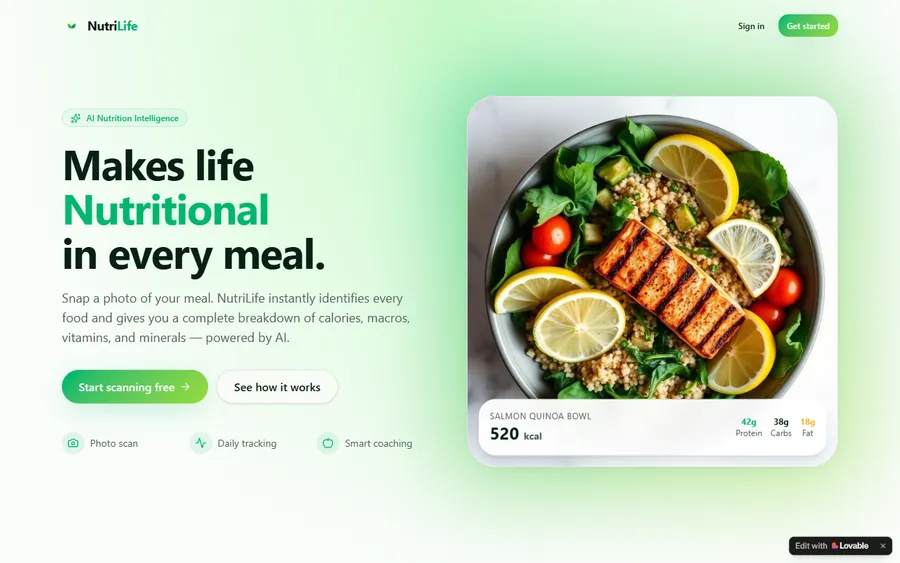
AI and ML
An AI nutrition coach that reads what you eat and works you toward a target.
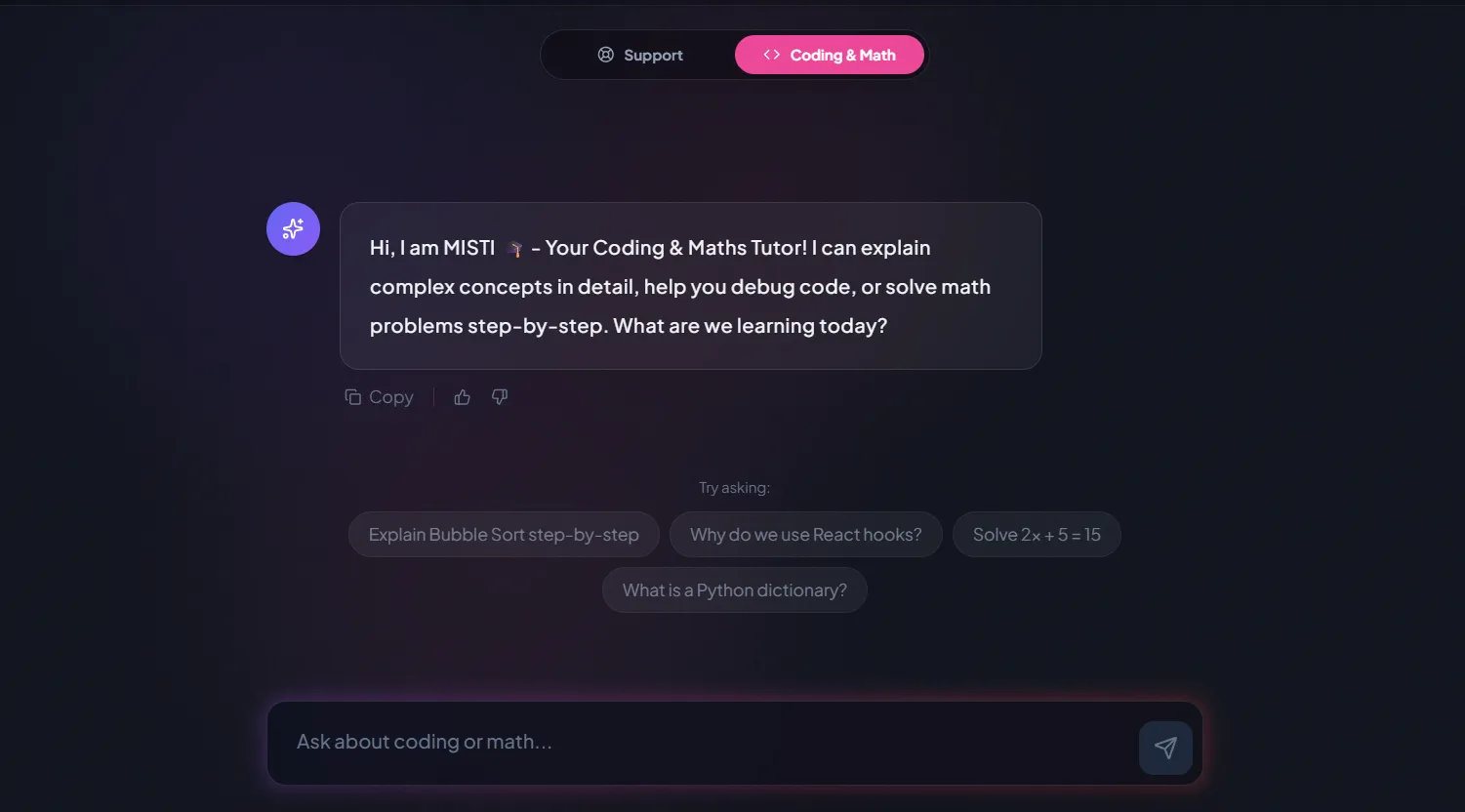
AI and ML
A chatbot that answers mathematics and programming questions, built and deployed by a student.
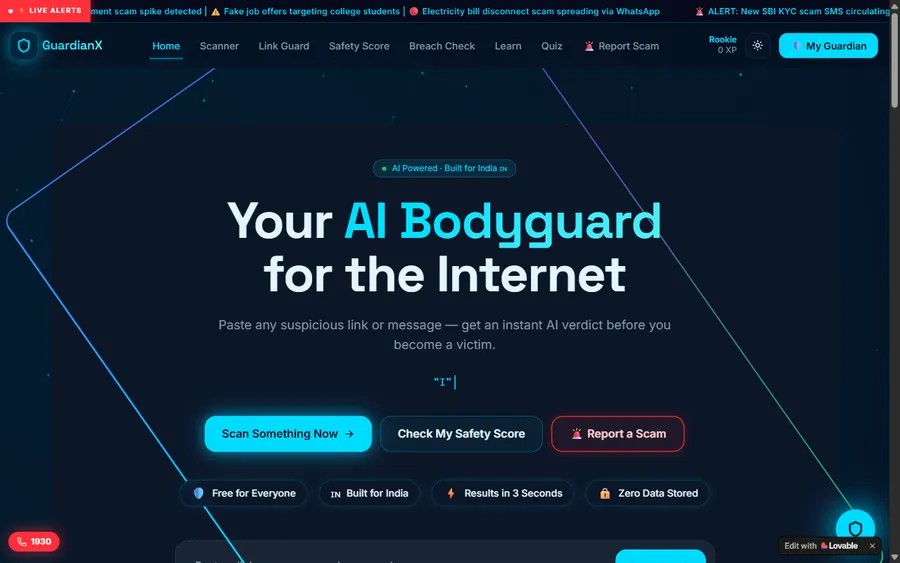
AI and ML
An assistant that helps a young person recognise unsafe situations online.
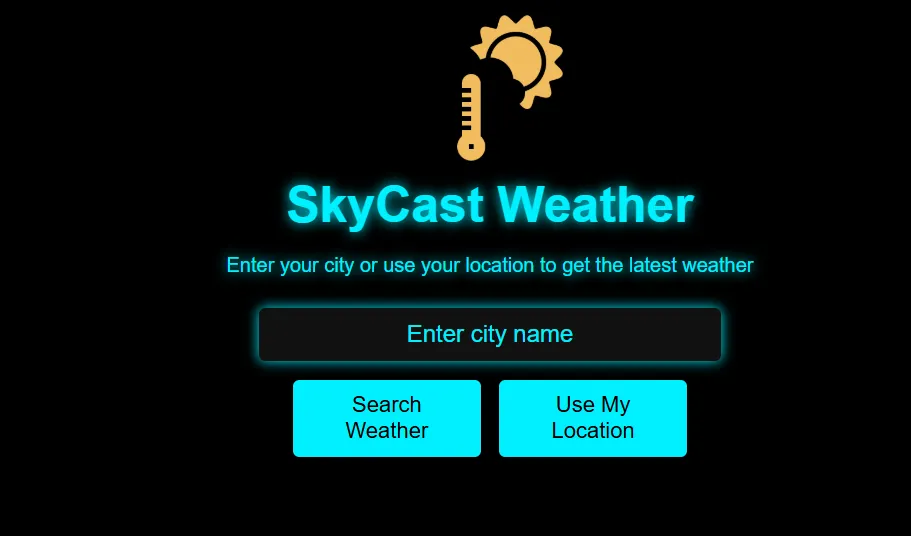
Web app
A weather forecasting site with live conditions for any location.
Fees
Jupyter is free and open source. What you pay for is a teacher: monthly fees shown in US dollars, no contract for the whole semester, and you can stop at the end of any month.
Free first class
USD 0
no card required
Group batch
USD 100
a month, billed in US dollars
One to one
USD 150
a month, billed in US dollars
What families say
Reviews parents left on Google, quoted as written.
★★★★★
"The one step solution for my son. Modern Age Coders make learning coding so simple that kids love it. The teachers explain complex concepts clearly with practical exercises and interactive content."
Ria Mukherjee
Parent
★★★★★
"Modern Age Coders has been a game-changer for me. I struggled to grasp IT concepts and coding before joining, but their classes transformed everything. I can now confidently write complex programs with ease."
Samriddha Mondal
Student
★★★★★
"One of the most wonderful education centres out there. Education is not limited to school syllabus but focuses on skill development."
Vansh Agarwal
Student
★★★★★
"My child Dhairya is really enjoying the Modern Age Coders classes. This is his first online class and he eagerly looks forward to it. I can already see his improvement, and the teachers are very cooperative."
Sonam Oswal
Parent of Dhairya
★★★★★
"Modern Age Coders have wonderful teachers who teach in a clear, easy and practical way. The teacher boosts students' confidence and inspires them to learn without hesitation."
Sonu Goyal
Parent
★★★★★
"I highly recommend this computer coding class! The teachers are incredibly knowledgeable and passionate about coding."
Ritu Kedia
Parent
Questions students ask
Find which half failed. If the terminal shows an error or the command is not found, the server or install is the problem. If the page loads but cells will not run, the kernel is. The Jupyter docs suggest running jupyter notebook from a terminal first.
Install the package from inside the notebook with %pip install followed by the package name, then restart the kernel. That installs into the environment the kernel uses, which is often not the one your terminal uses.
Usually the kernel spec points at a Python that no longer exists. Run jupyter kernelspec list, open kernel.json in the folder it shows, and check that the path in argv exists. Re-registering the kernel with python -m ipykernel install, as the IPython docs describe, is the standard repair.
The notebook is looking in its own folder and the file is somewhere else. Print os.getcwd() to see the folder, then move the file there or use the correct path.
Cells were run out of order before, so variables existed that a fresh run never creates. Restart the kernel and run all cells from the top, then fix the first cell that fails.
Use the Kernel menu and choose Interrupt, or press i twice in command mode. If that fails, restart the kernel.
Yes. The Jupyter documentation says Jupyter software is free and open-source, and it can be installed with pip or with the Anaconda distribution.
No. We teach the ideas so you can finish your own notebook, and we never complete graded assignments. A teacher will help you find and fix the error yourself.
Weekdays or weekends, flexible. Choose your batch, or for a very personalised plan choose 1-on-1 at your convenience, weekend mornings or weekdays.
The first lesson is free. Then you pay monthly for live teaching, and this page's fees section lists the monthly figure in US dollars.
Elsewhere on this site
More for US students working with Python and data.
All our pages written for US learners.
What a full course covers.
For students moving on to models.
A method for any bug.
Paths, reading and writing.
A starting point in high school.
Every Python IndentationError message, what it means, and how to fix it.
Python turtle not working? The real errors, the fixes, and how to write text.
Scratch not working? Saving, sign-in, school network and tablet fixes, from the Scratch Help Center.
Start here
Tell us which class or project the notebook belongs to and what error it shows. In the first lesson the teacher works through it with you.
If you want to see the approach first, read how our lessons run, or open the course catalogue for full syllabuses.
WhatsApp us · +91 91233 66161 · connect@modernagecoders.com
Everything happens on live video, and the teachers are based in India, so there is no campus to visit. For US students, WhatsApp is usually the quickest way to reach us.
A priority demo is a full class of about 45 to 60 minutes. After the class the mentor sends a written skill report and a personal learning roadmap on WhatsApp. If you enrol, the demo fee is adjusted against your first month's fee. Share your demo Order ID with us on WhatsApp and we take it off.
Book a priority demo